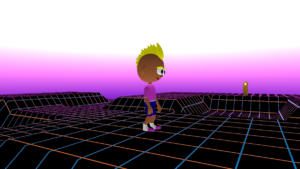

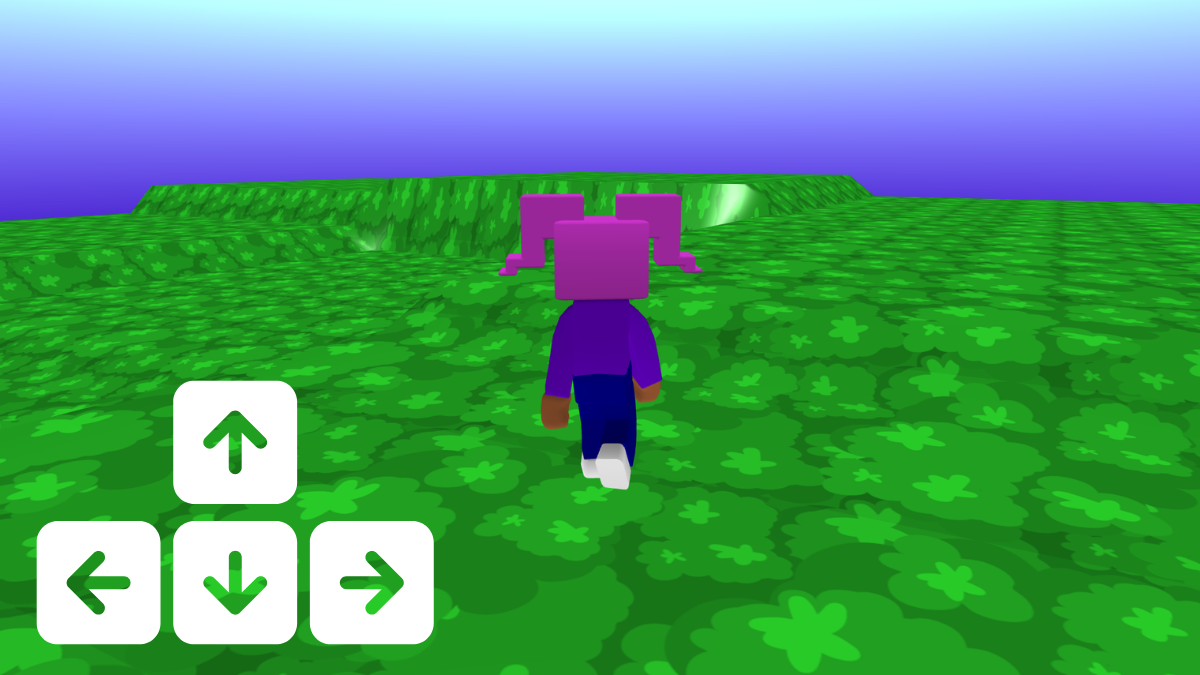
Personalise your world and player
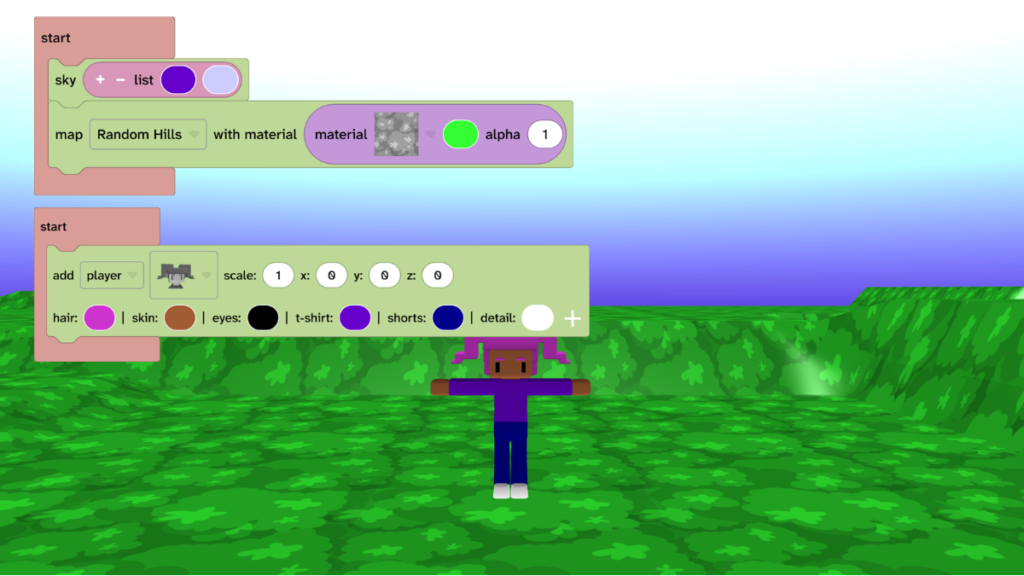
- Choose sky colours for your sky.
- Choose a terrain, map material and colour.
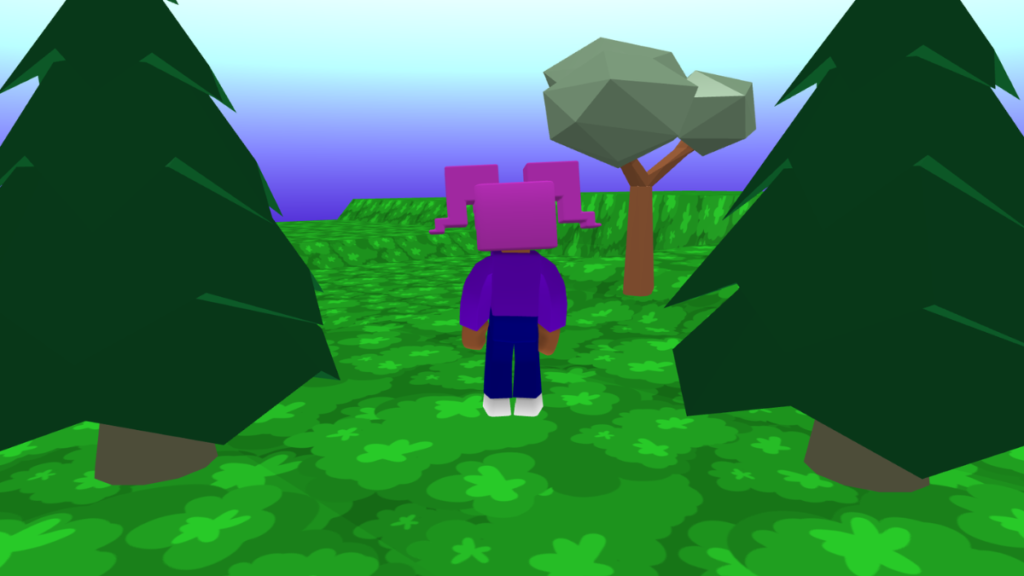
- Choose a player character and colours.
Add physics and camera
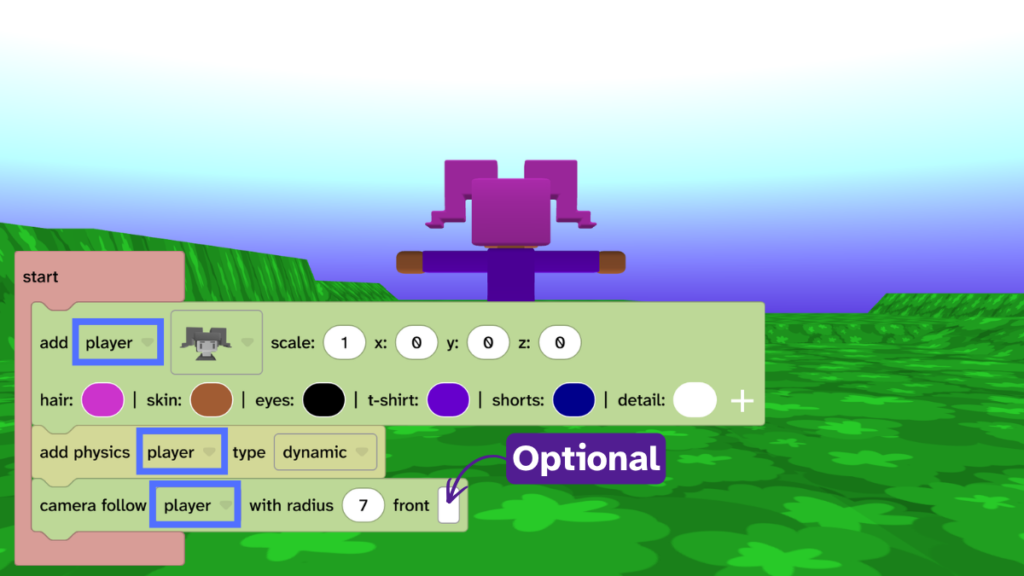
- From Transform, choose Physics and add the ‘add physics type’ block under the ‘add player’ block.
- From Scene, choose Camera and add the ‘camera follow’ block under the ‘add physics type’ block.
- Optional: Check the front to see the front of the player at the start.
- Press Play ▶️ and the camera should follow the player.
- Debug: Check that both new blocks are set to ‘player’ 👀
Move forward
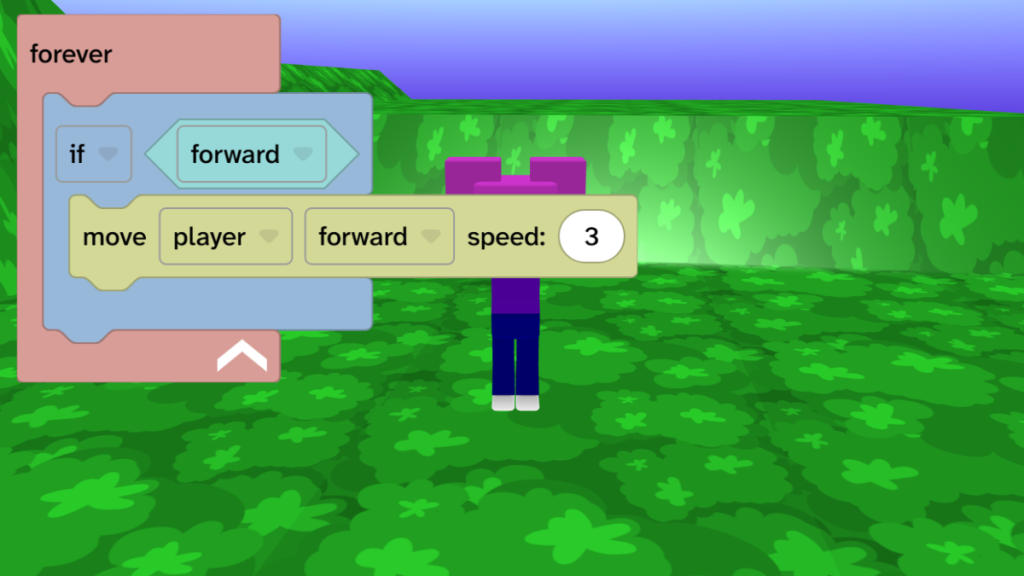
- From Events, add the ‘forever’ block to the code area to repeat the code inside forever.
- From Condition, add the ‘if’ block inside the ‘forever’ block. The ‘if’ block allows your code to make decisions.
- From Sensing, add the ‘forward’ block to the shadow block on the ‘if’.
- From Transform, choose Physics and add the ‘move player’ block inside the ‘if’ block.
- Press Play ▶️ to test. Move with W on keyboard or the ↑ on touchscreen.
- Debug: Check the move block uses your player name, e.g. ‘player’
Move backward
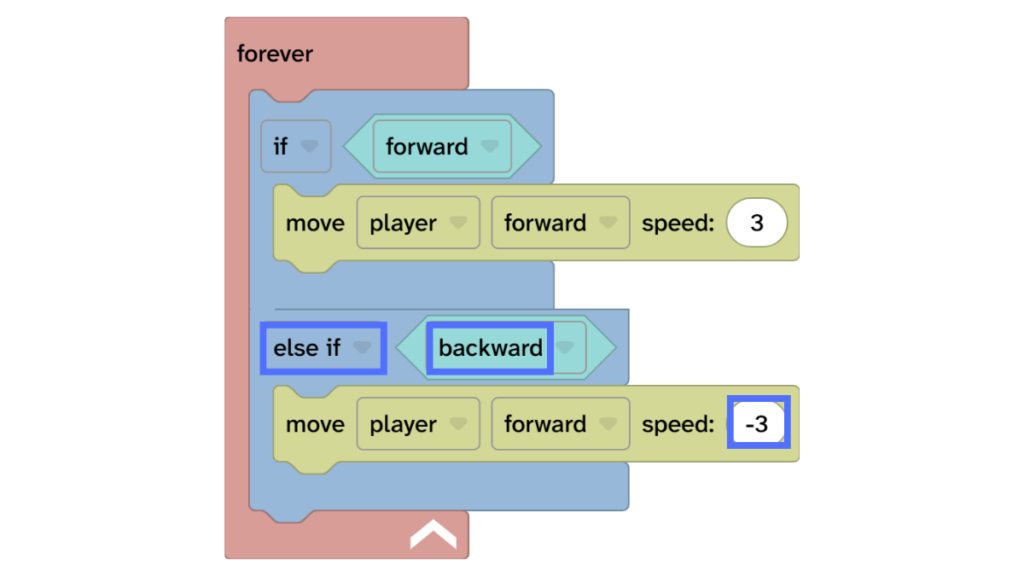
- Select the whole ‘if’ block.
- Copy and paste by using Ctrl + C, Ctrl + V on a keyboard or right-click (tap and hold) on the ‘if’ block and choose copy and paste.
- Change the new ‘if’ block to ‘else if’.
- Change ‘forward’ to ‘backward’ and change speed to -3.
- Press Play ▶️ to test. Move your player with S on a keyboard or ↓.
Add player animations
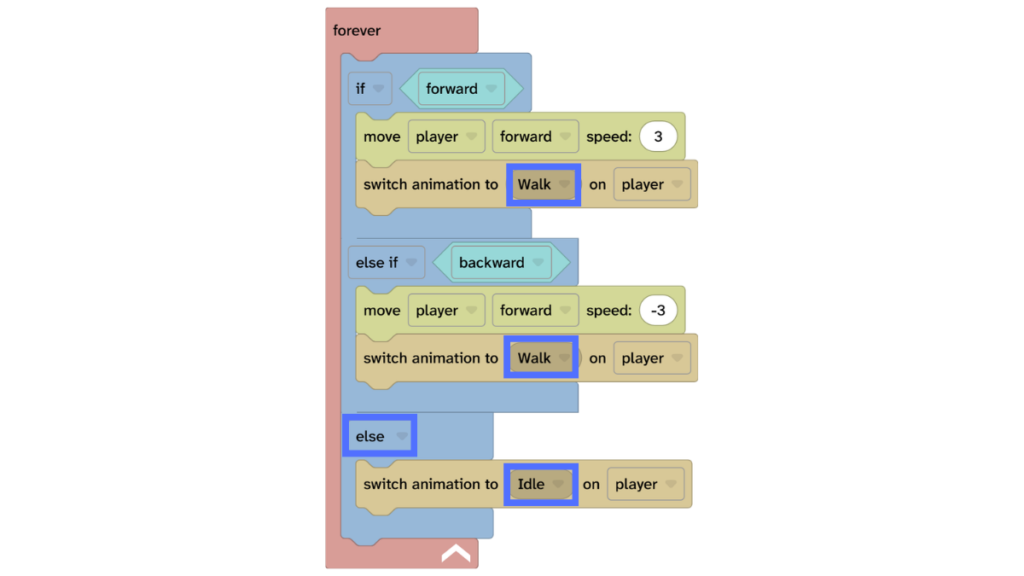
- From Animate, add the ‘switch animation’ block under the ‘move player’ block in the first ‘if’.
- Change the animation to ‘walk’.
- Select the ‘switch animation’ block and tap D on your keyboard to duplicate (or use the menu)
- Drag the block under the second ‘move player’ block.
- From Condition, add another ‘if’ block under the ‘else if’ and change it to ‘else’
- Duplicate the ‘switch animation’ block again and place it inside the ‘else’. Change it to ‘idle’.
- Press Play ▶️ to test. Change direction by dragging the camera with your finger or mouse.
Take it further
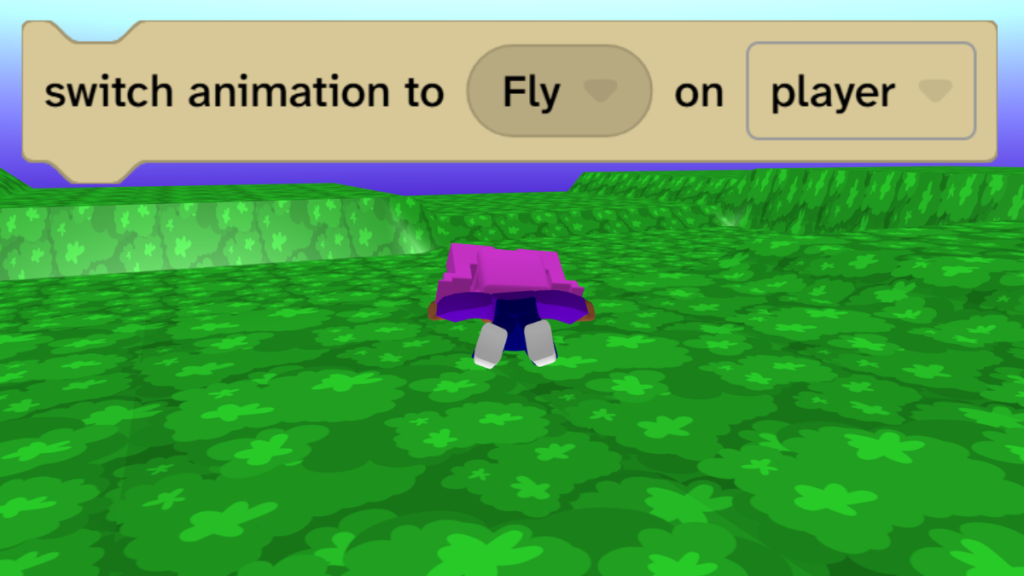
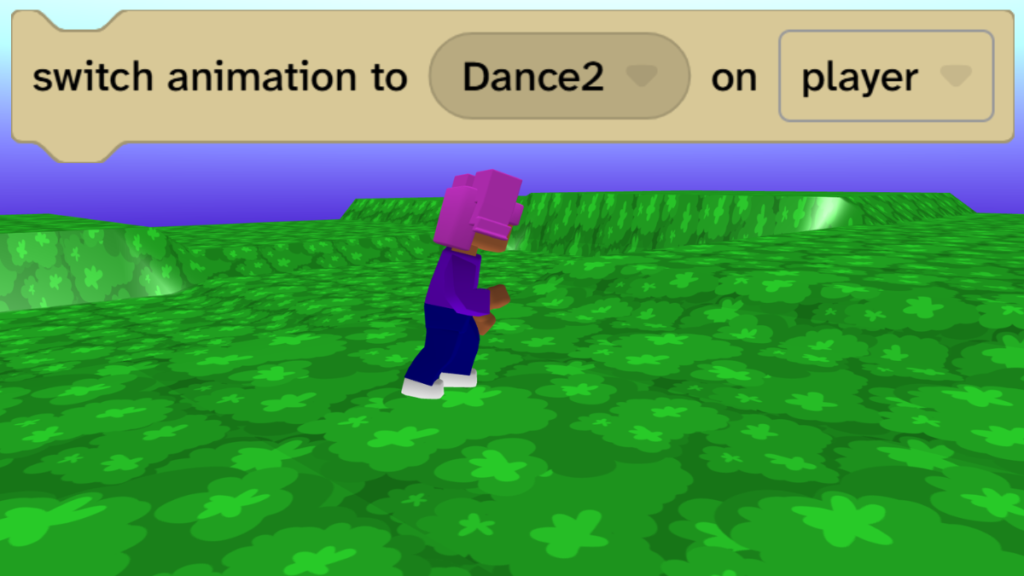
- Change the ‘walk’ animation to something else like run, dance or fly!
- Change the speed to move faster, such as 10 and -10.
- Add objects to your world to make it an environment to explore.
Idea gallery