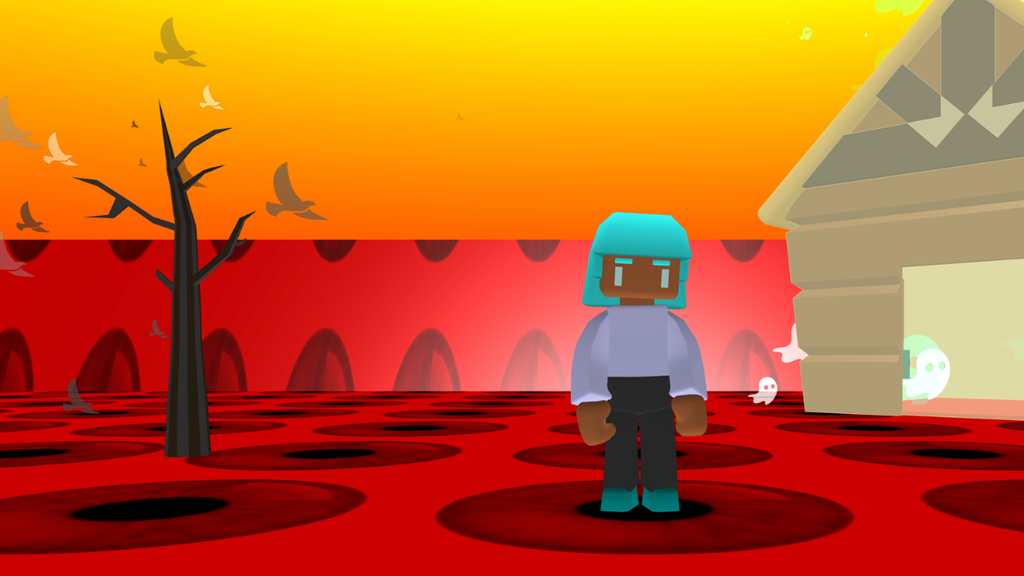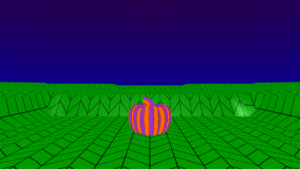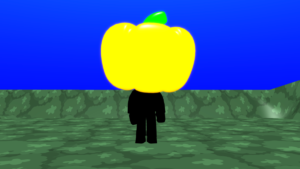

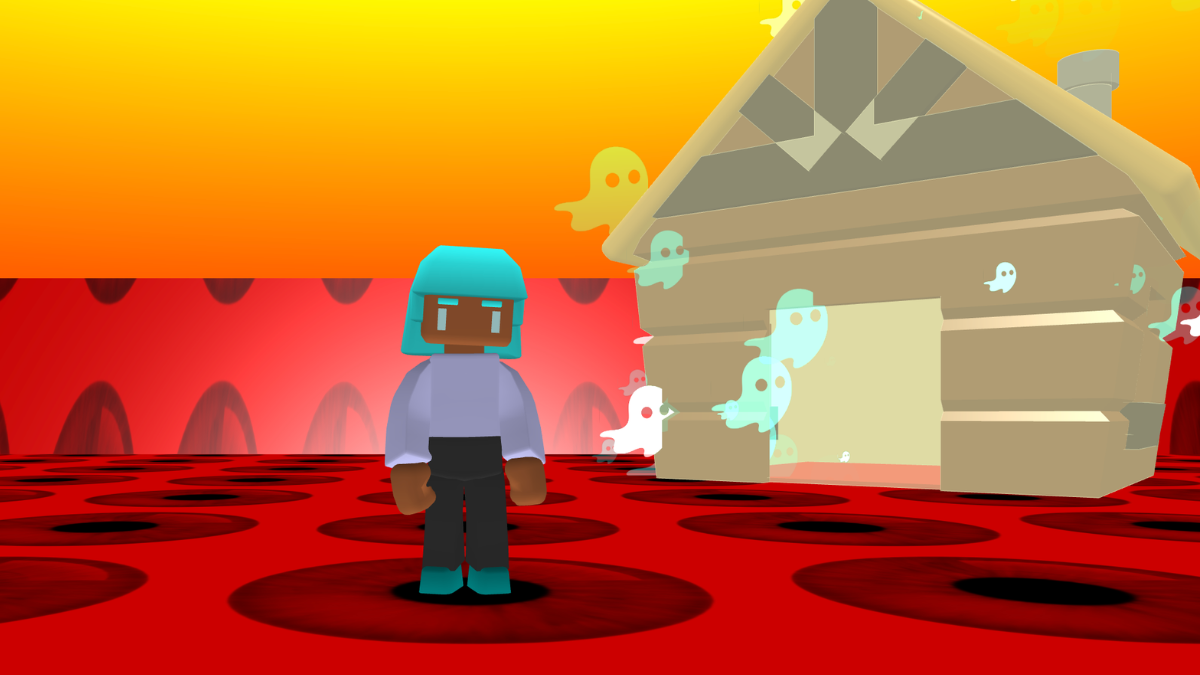
Personalise your world and character
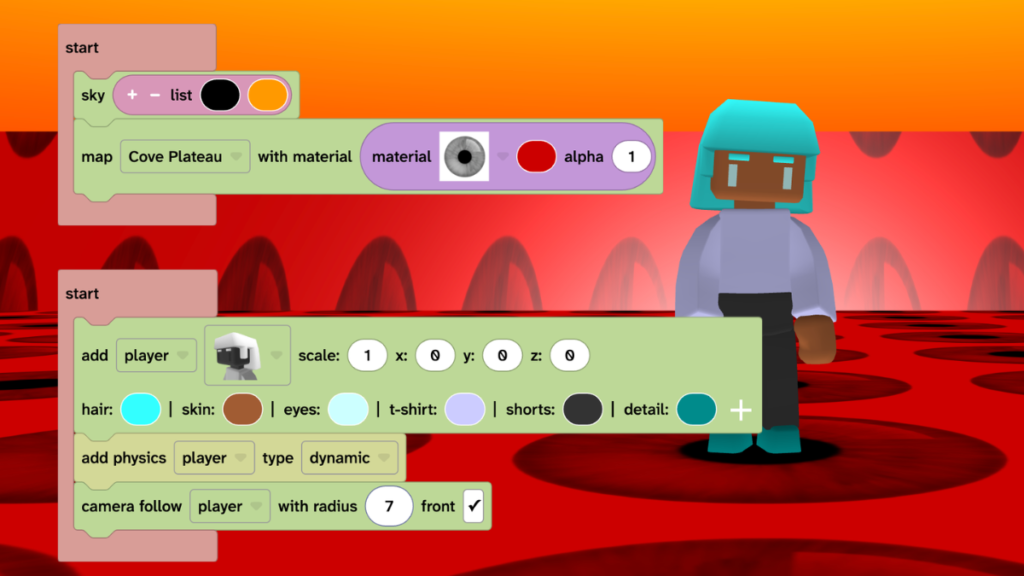
- Change your sky and map to create a Halloween feel for your world. Choose your own style.
- Choose a character from the character options on the ‘add player’ block
- Choose colours for your character
- Make it as spooky as you like!
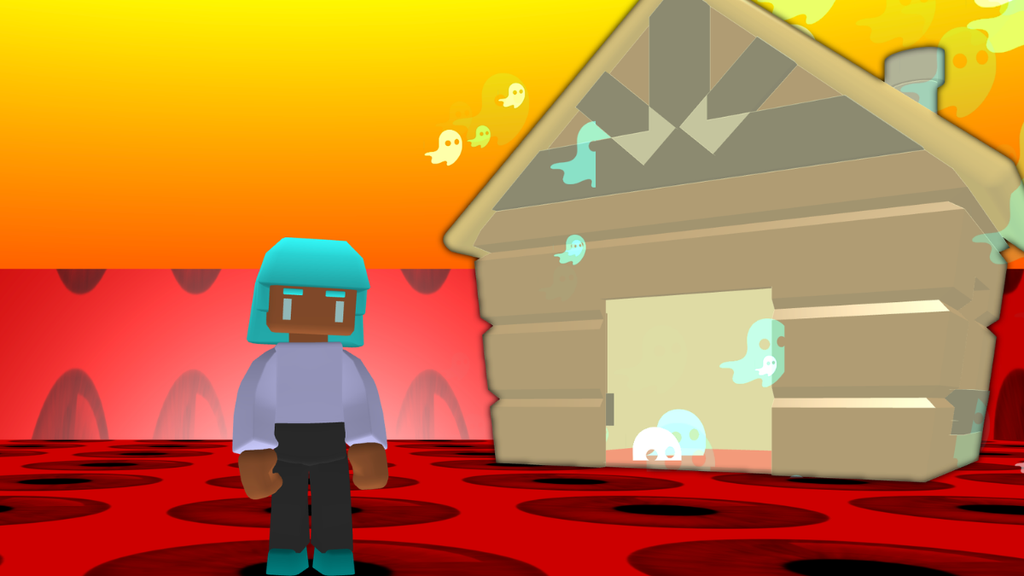
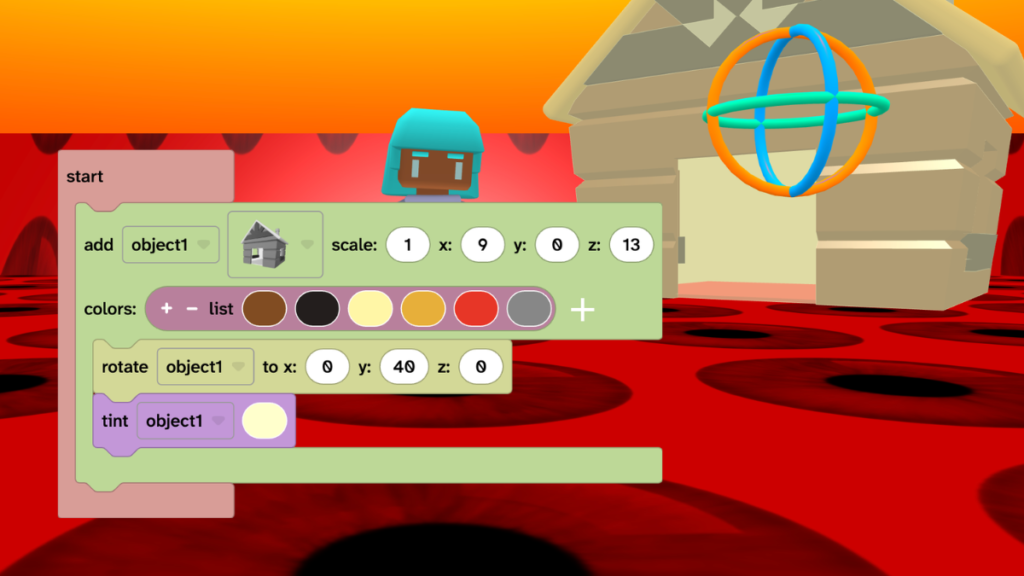
Add a spooky hut
- Click the + sign under the canvas and choose a hut from the 2nd row.
- Click on the map floor of your world to place the hut.
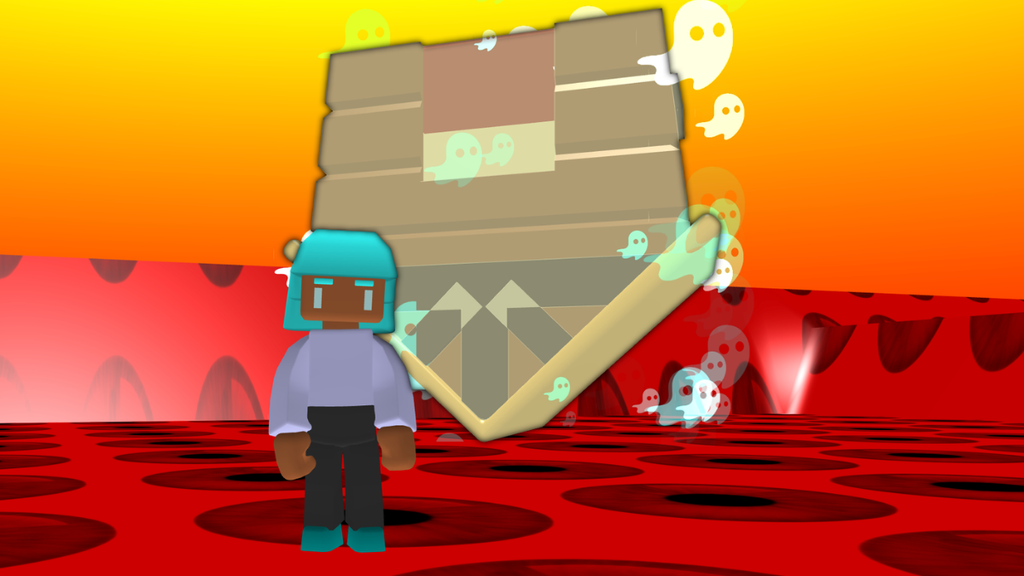
- Click on the rotate gizmo then drag the horizontal circle to rotate the hut.
- From Materials, add the ‘tint’ block under the ‘add object’ block and choose a ghostly colour.
Walk inside the house
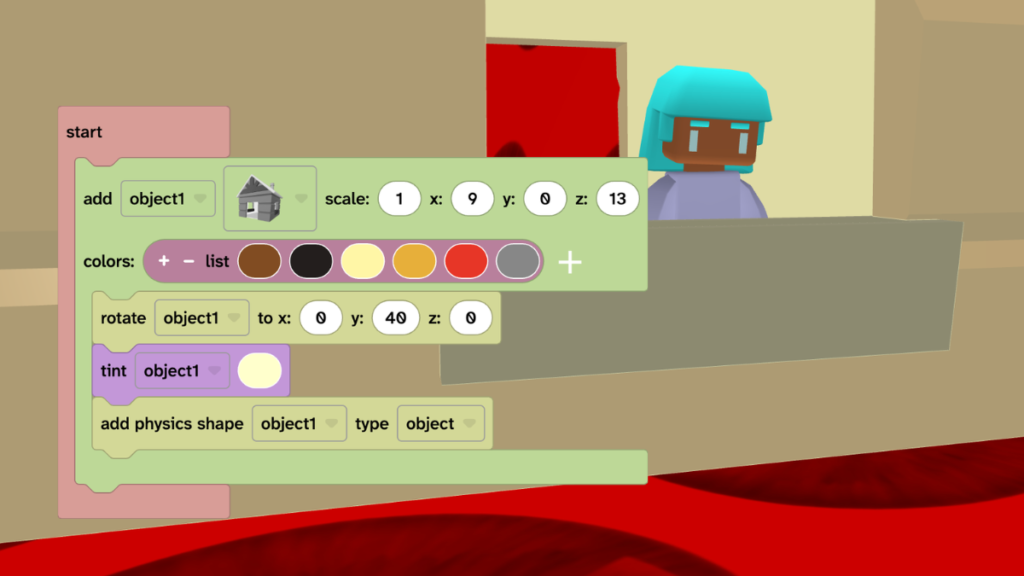
- From Transform, choose Physics then add the ‘add physics shape’ block inside the ‘add object’ block.
- Make sure ‘type’ is set to ‘object’ to set the bounding box to the shape of the hut so that you can walk inside.
- Press play and walk inside the hut to test.
Add spooky spatial sound
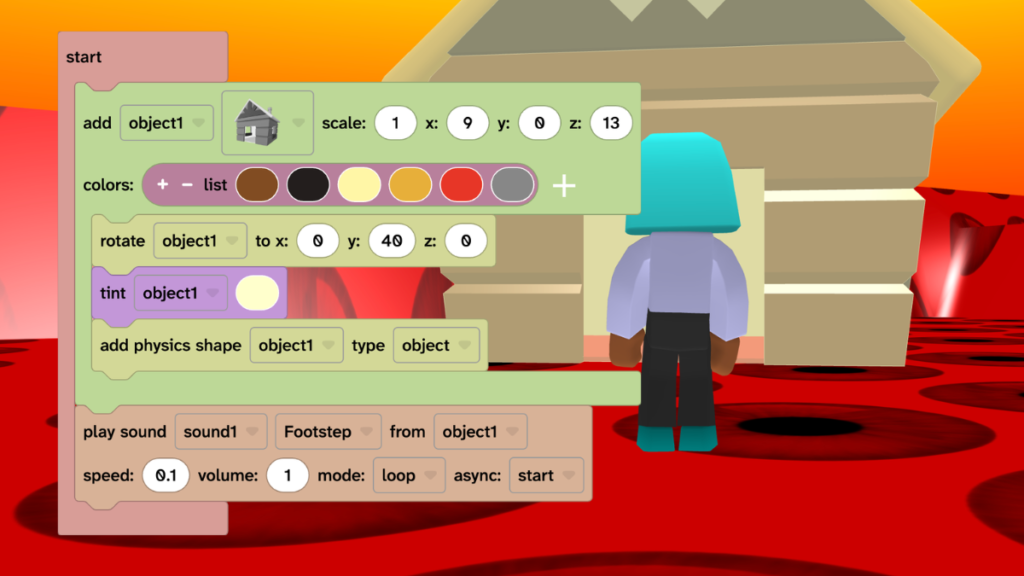
- From Sound, add the ‘add play sound’ block under the ‘add object’ block.
- Choose a sound then slow the sound ‘speed’ to 0.1.
- Select play ‘from’ object1 to play the sound from the hut.
- Change ‘mode’ to loop to repeat the sound.
- Press play and walk to the hut to test that the sound gets louder.
Add ghostly particle effects
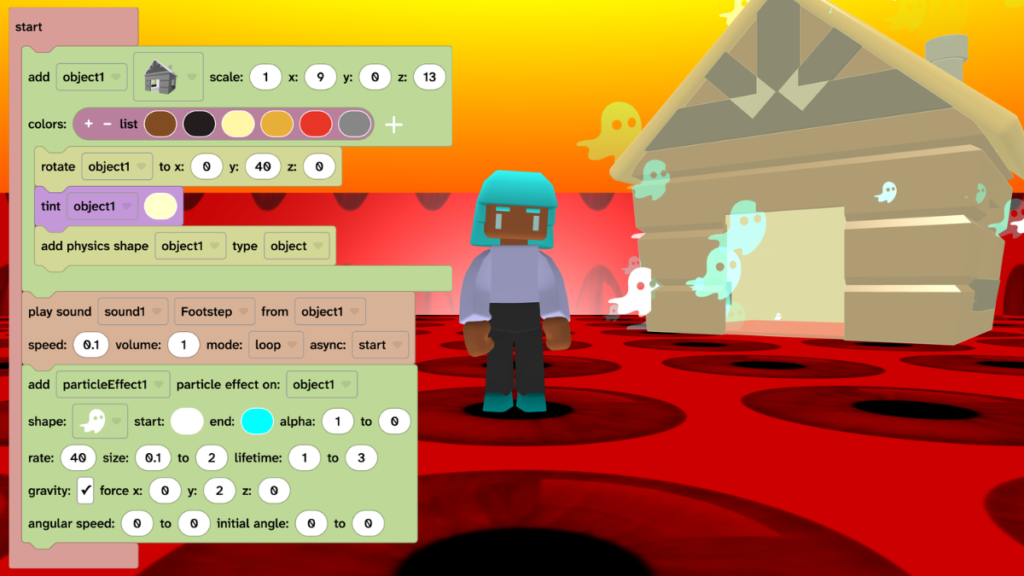
- From Scene, choose Effects then add the ‘add particle effect’ block under the ‘play sound’ block.
- Choose a particle ‘shape’ and colours, ‘rate’ and ‘size’.
- Tick gravity.
- Press play to test.
Take it further
- Add more objects with particle effects and sounds.
- Add more Material effects such as ‘highlight’ or ‘glow’.
- Rotate the hut to an unnatural position to increase spookiness.
Idea gallery