
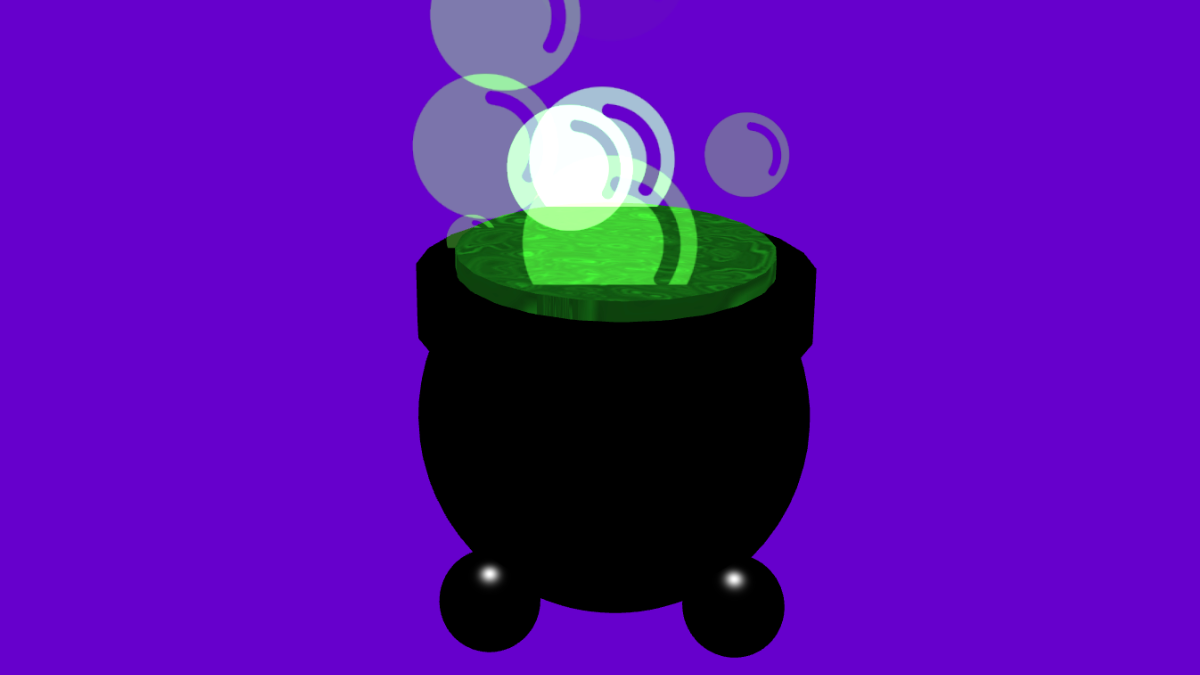
Make the cauldron bowl
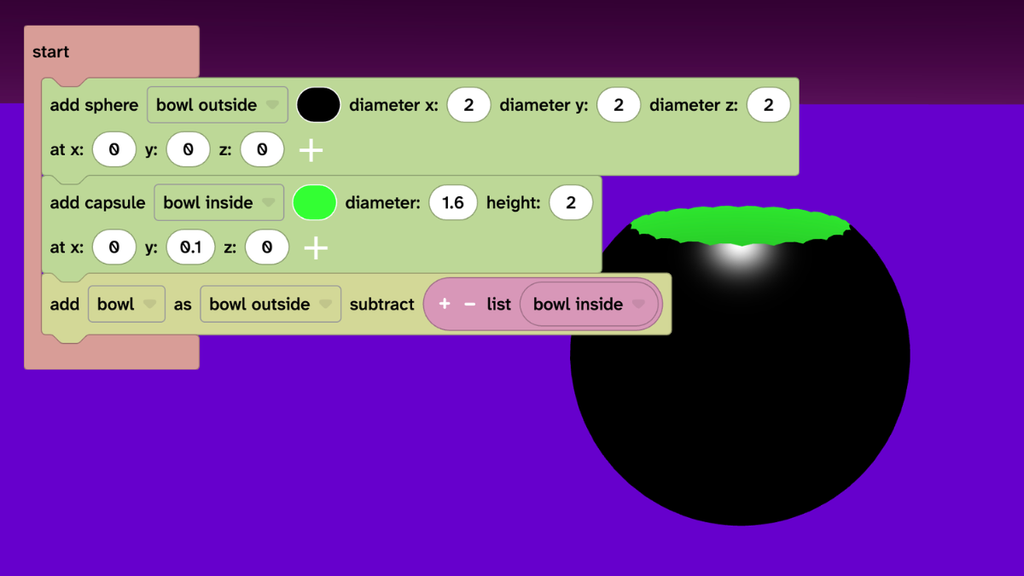
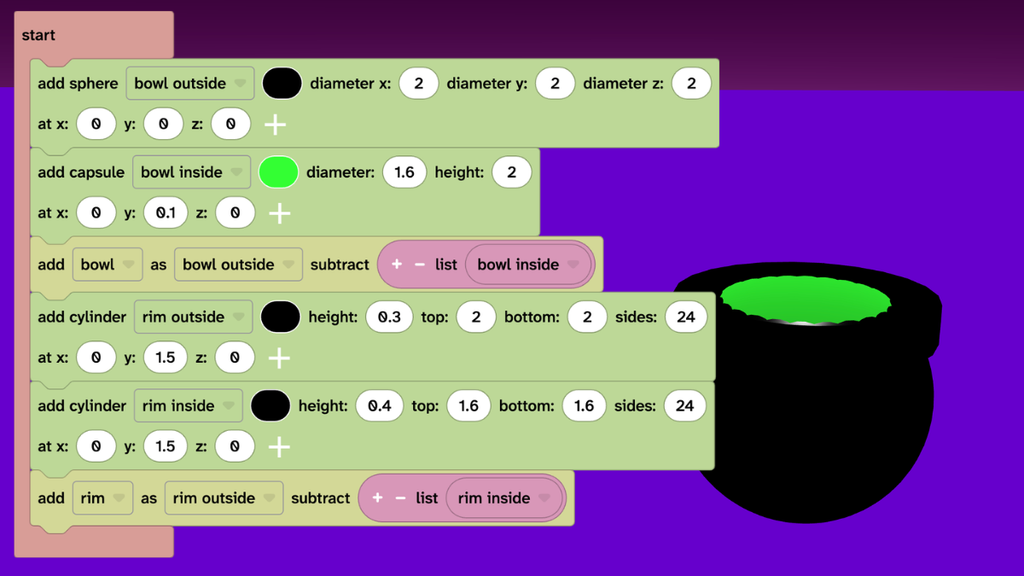
- From Scene, select Objects then add the ‘add sphere’ block.
- Use the dropdown to ‘rename variable…’ as “bowl outside”. Set the colour to black and each diameter to ‘2’.
- Add the ‘add capsule’ block and name “bowl inside”. Set the colour to green, diameter to ‘1.6’, and y to ‘0.1’.
- From Transform, choose Combine then add the ‘add subtracted’ block.
- Rename subtracted1 to “bowl” then select ‘bowl outside’ subtract ‘bowl inside’.
- Press play to test.
Make the rim
- Add the ‘add cylinder’ block and name “rim outside”. Set the colour to black, height to ‘0.3’, top and bottom to ‘2’, and y to ‘1.5’.
- Right-click (or tap and hold) on the cylinder block and choose duplicate. Add the copied block to the bottom of the stack.
- Rename the new cylinder ‘rim inside’ with height ‘0.4’ and top and bottom ‘1.6’ .
- Add an ‘add subtracted’ block’. Rename subtracted to “rim” then select ‘rim outside’ subtract ‘rim inside’.
- Press play to test.
Add feet
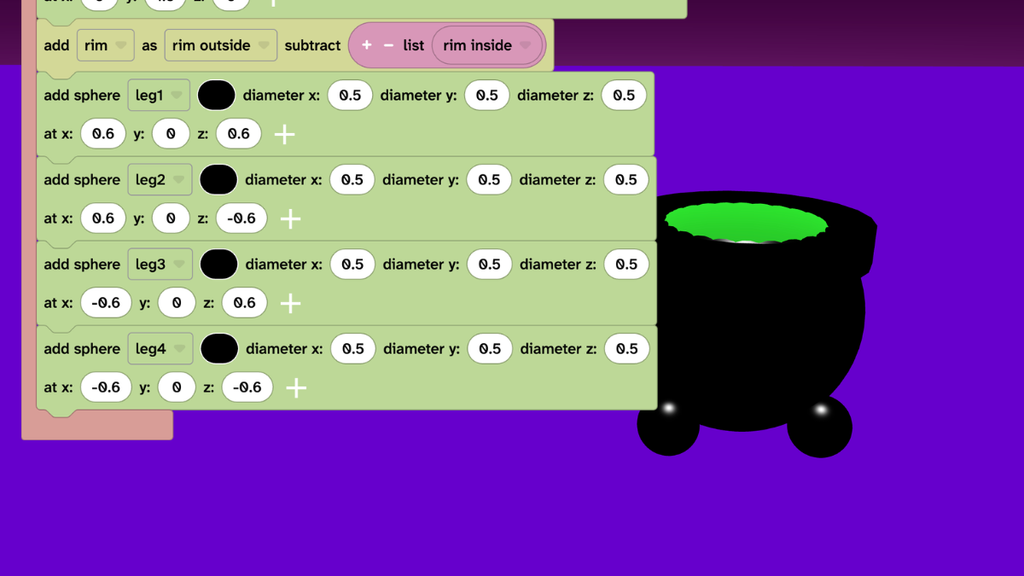
- Add the ‘add sphere’ block. Name it ‘leg1’ and set each diameter to ‘0.5’. Set x ‘0.6’ and z ‘0.6’.
- Right-click and duplicate. Change z to ‘-0.6’.
- Duplicate again and change x to ‘-0.6’.
- Duplicate again and change z to ‘0.6’.
Create a potion
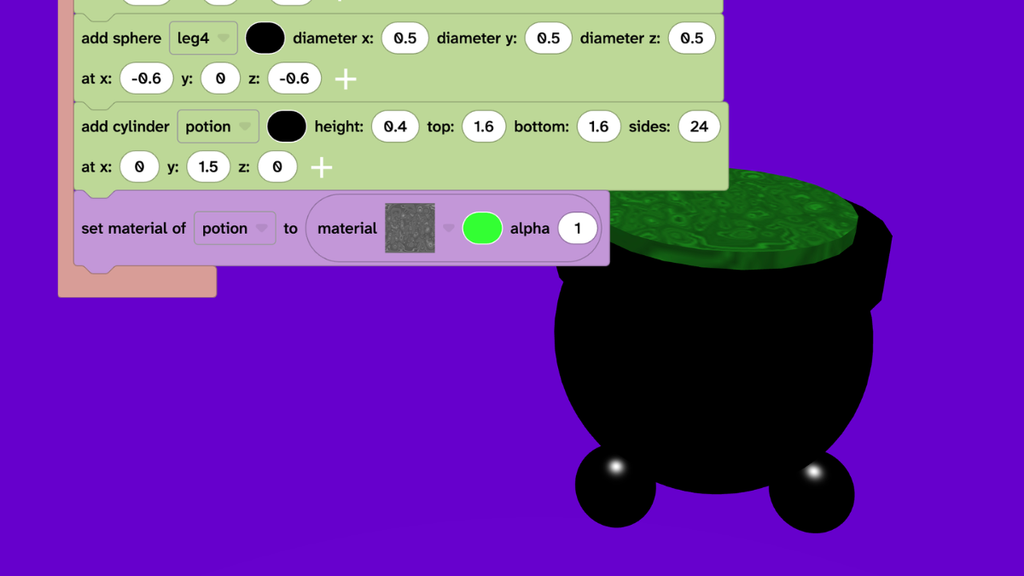
- Duplicate the ‘add rim inside’ block and place it under the leg code.
- From the dropdown select ‘New variable…’ and type “potion”.
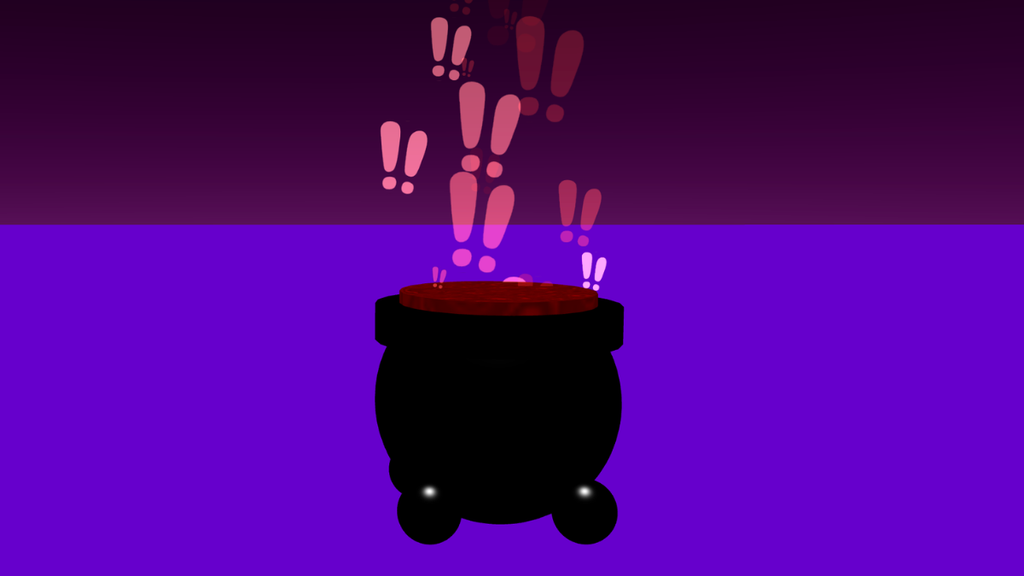
- From Materials add a ‘set material’ block then personalise your potion.
Make the potion bubble
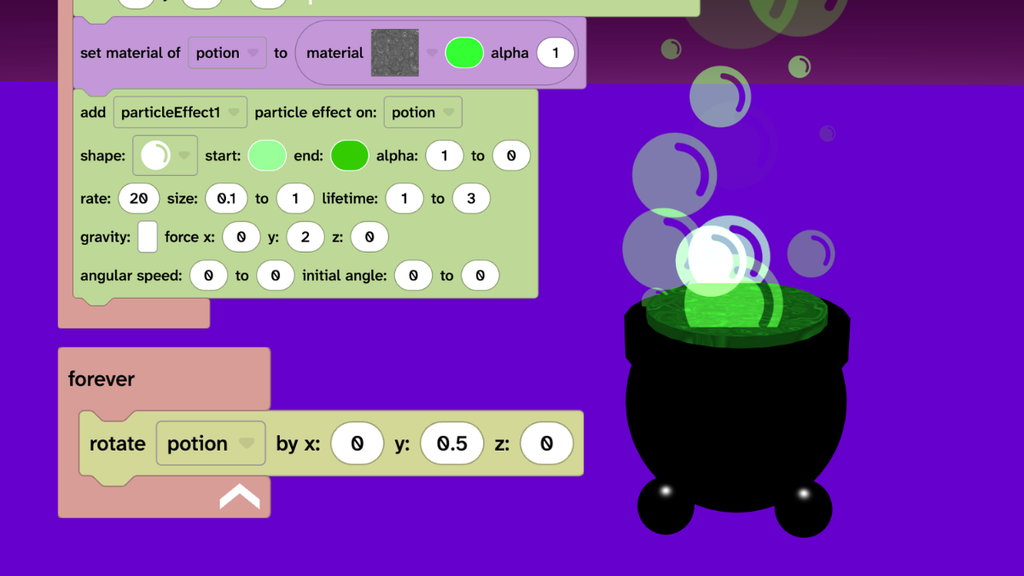
- From Scene, choose Effects then an ‘add particle effect’ block.
- Change the particle effect properties to make a bubbling effect.
- From Events, add a ‘forever’ block.
- From Transform, add a ‘rotate by’ block inside the ‘forever’ block.
- Change the ‘on’ dropdown to ‘potion’ and the y to ‘0.5’.
- Press play to test.
Take it further
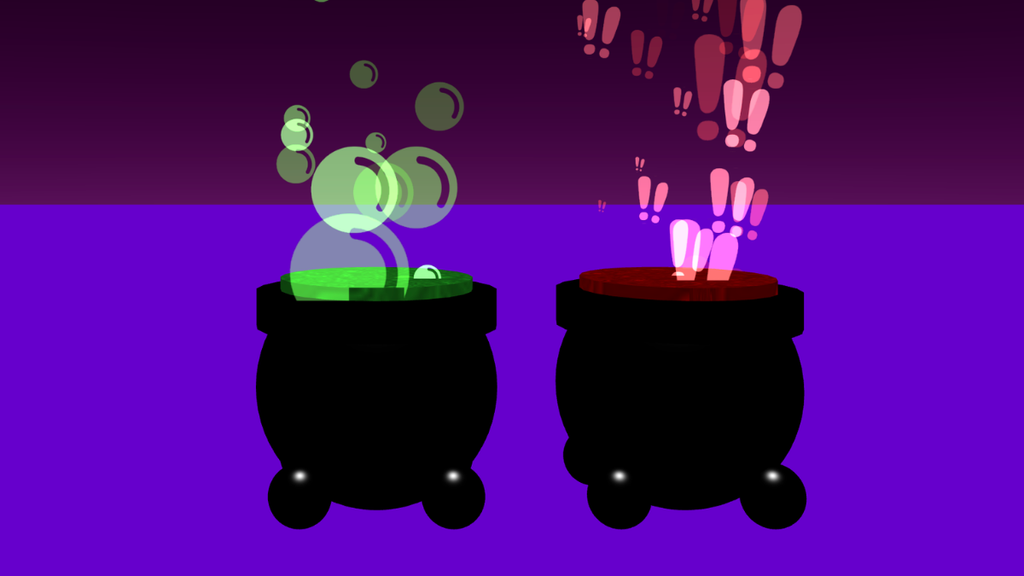
- Change the colours, materials, and particle effects to make different potions.
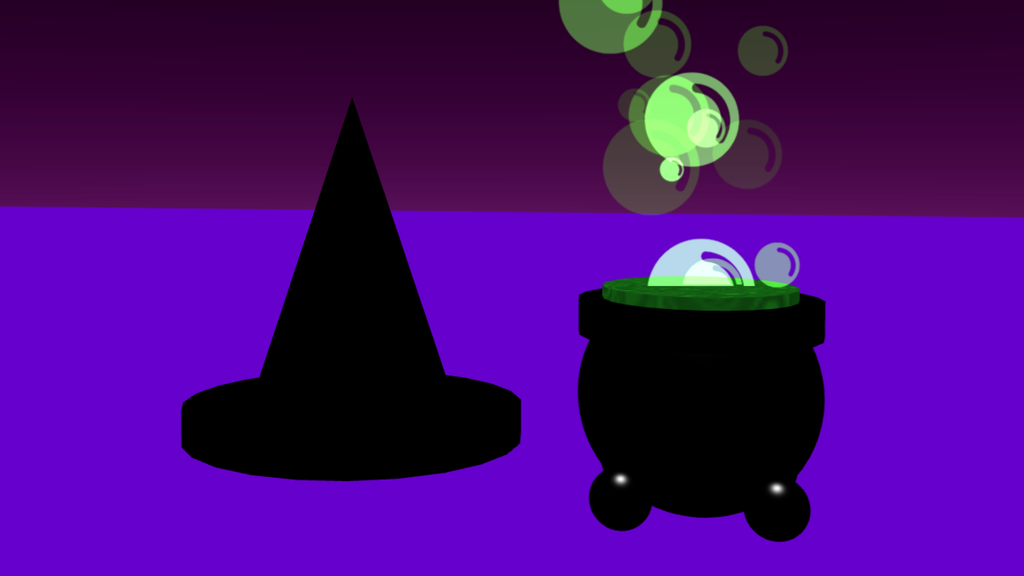
- Use shapes and subtraction to make a witch hat (Tip: a cylinder with a top ‘0’ becomes a cone)
- Duplicate your cauldron then change each x position by 2.5 to have two cauldrons side by side.
Idea gallery