
Personalise your world
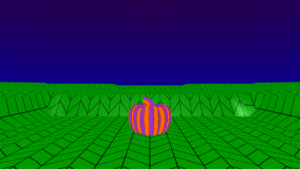
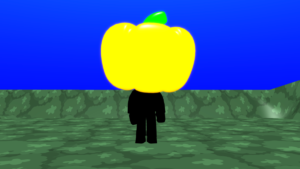
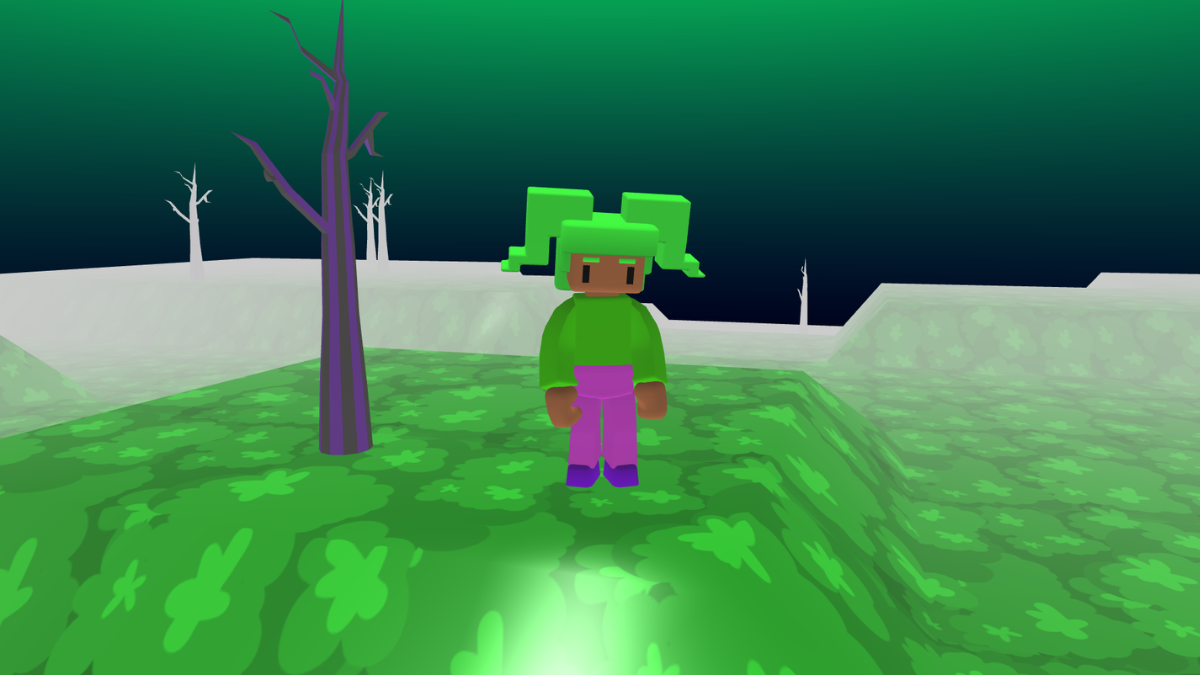
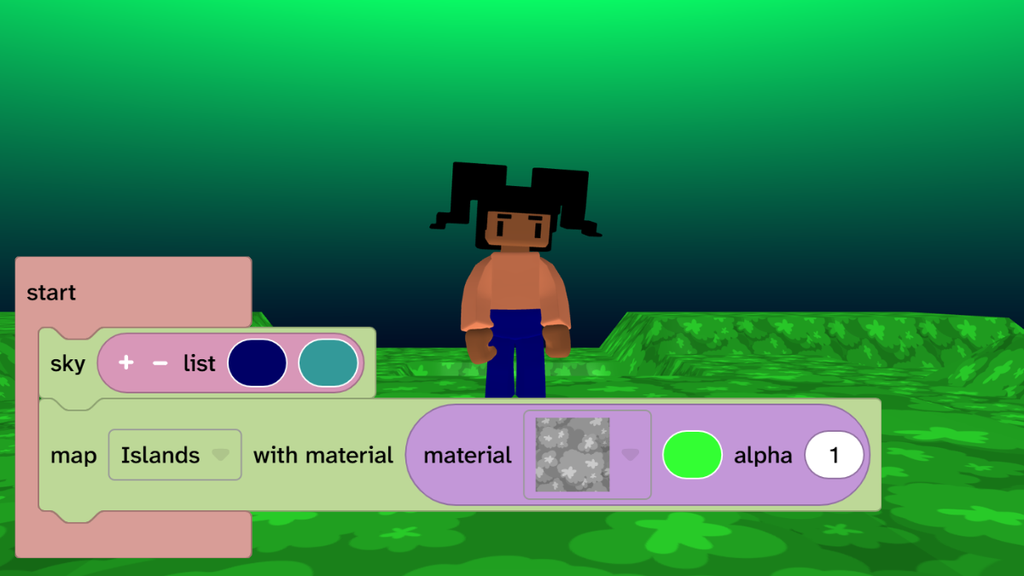
- Change your sky and map to create a Halloween feel for your world. Choose your own style.
- Look around: Hold the left mouse button and drag, or tap and drag, to turn.
- Move your player: W = forward, S = backward. Touchscreen: use the arrow buttons. Your player moves in the direction you are looking.
Personalise your character
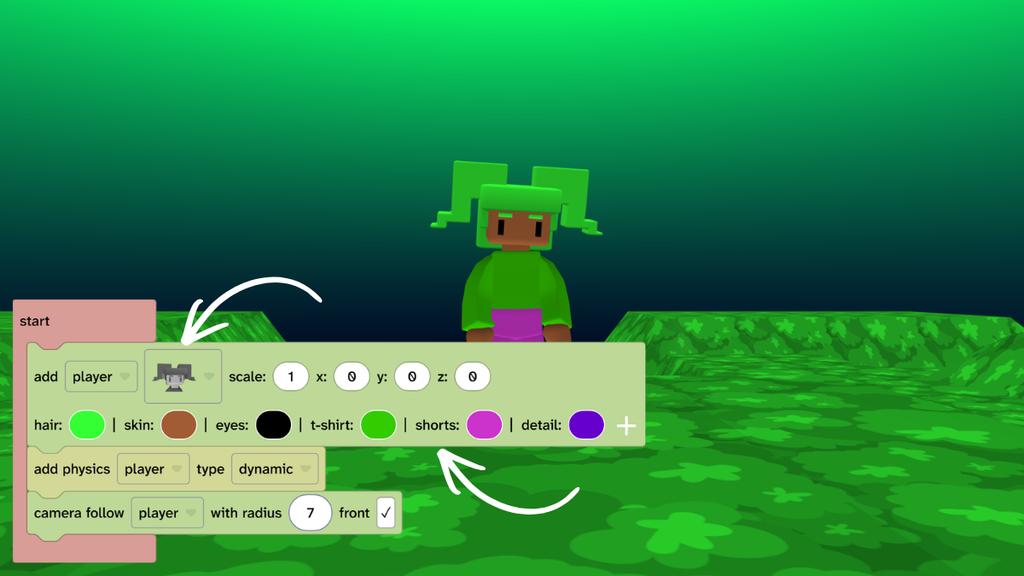
- Choose a character from the character options on the ‘add player’ block
- Choose colours for your character
- Make it as spooky as you like!
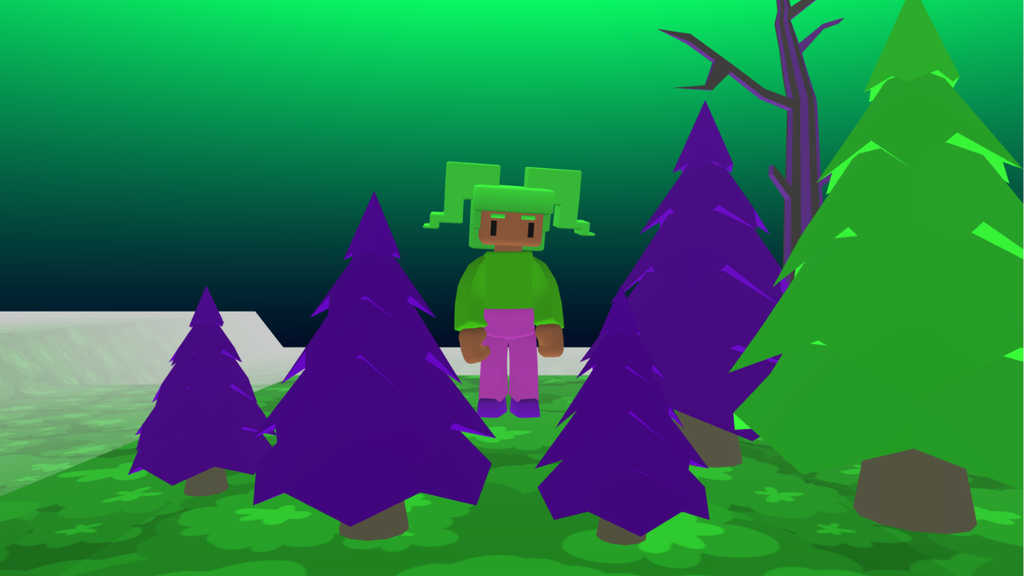
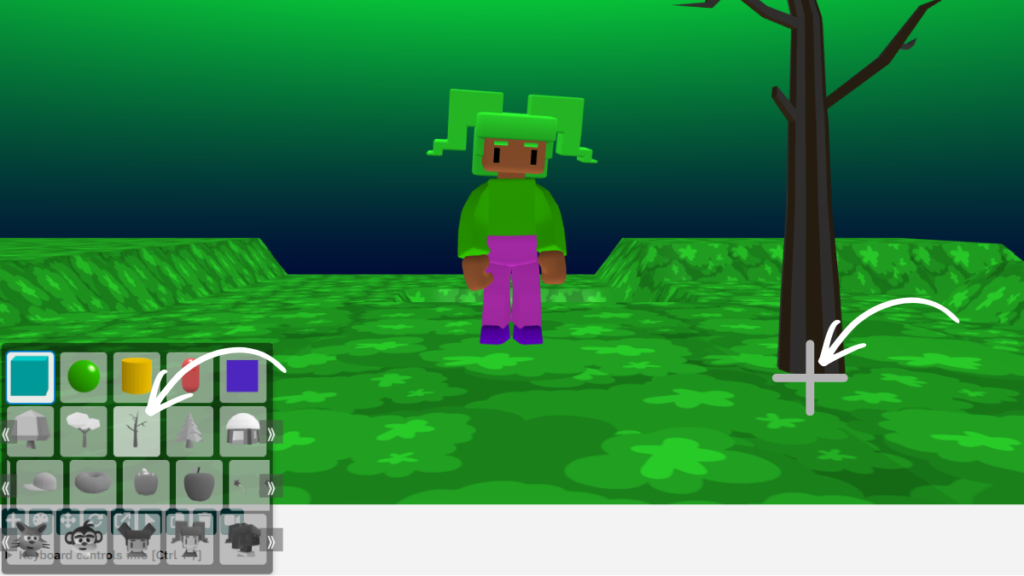
Add a tree
- Click the + sign under the canvas and choose a tree from the 2nd row.
- Click on the map floor of your world to place the tree.
- Tip: If you place your tree in the wrong place then right-click (tap and hold) in the code area and choose Undo.
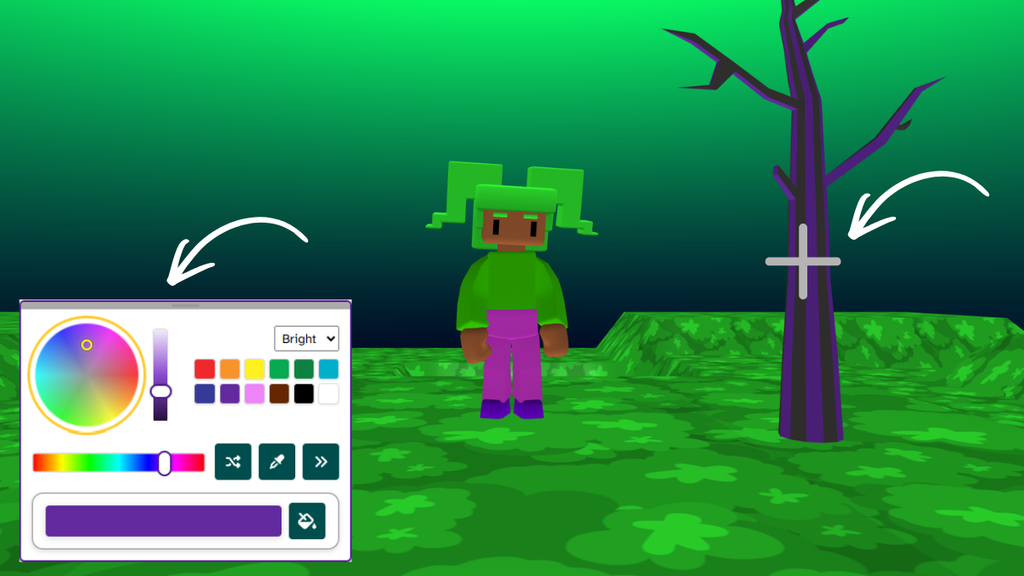
Colour the tree
- Click the colour palette icon under the canvas.
- Choose a colour for your tree.
- Click the tree to change its colour.
- Repeat for each colour as needed.
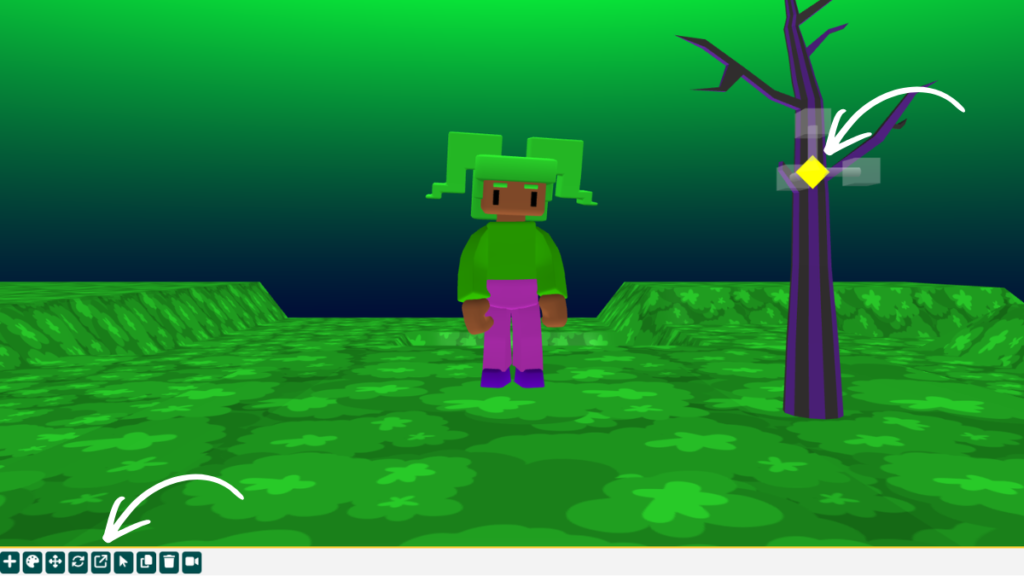
Scale the tree
- Click on the scale gizmo and then the tree.
- Drag the white diamond in the centre to scale the tree.
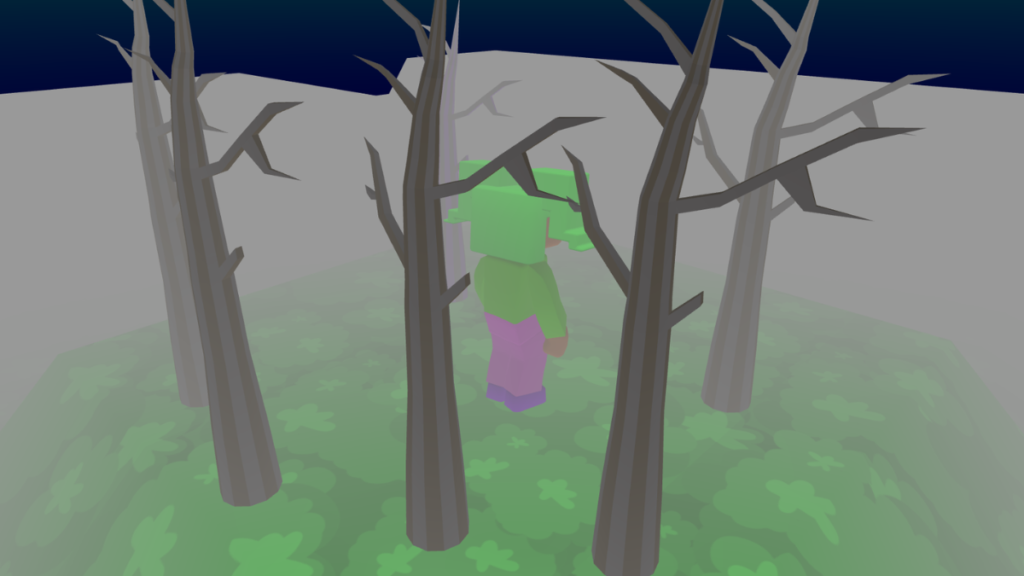
Add fog to your world
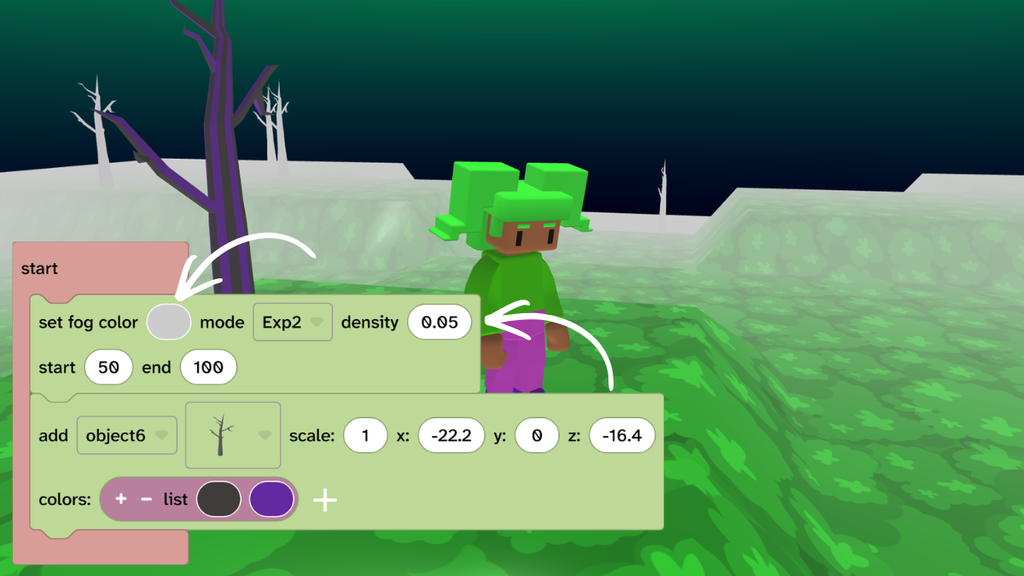
- From Scene, choose Effects and drag the ‘set fog colour’ block under any start.
- Click the ‘Linear’ dropdown and choose ‘Exp2’.
- Press play to test.
- Try different fog colours and density values to get the effect you want.
Take it further
- Add, colour and scale more trees to build your spooky environment.
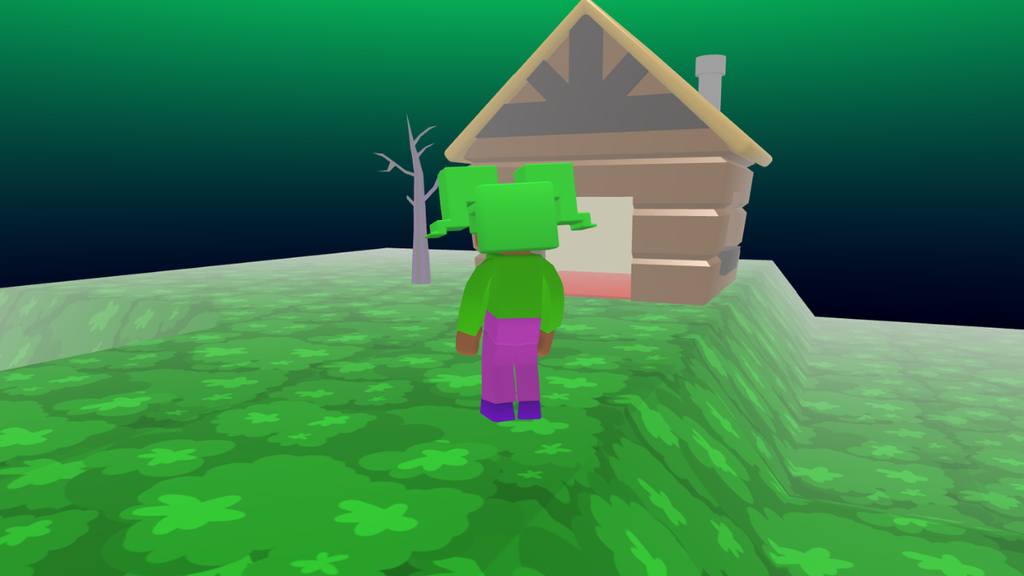
- Add more objects, such as houses, to build your spooky scene.
- Move around the whole world and make it as spooky as possible.
Idea gallery