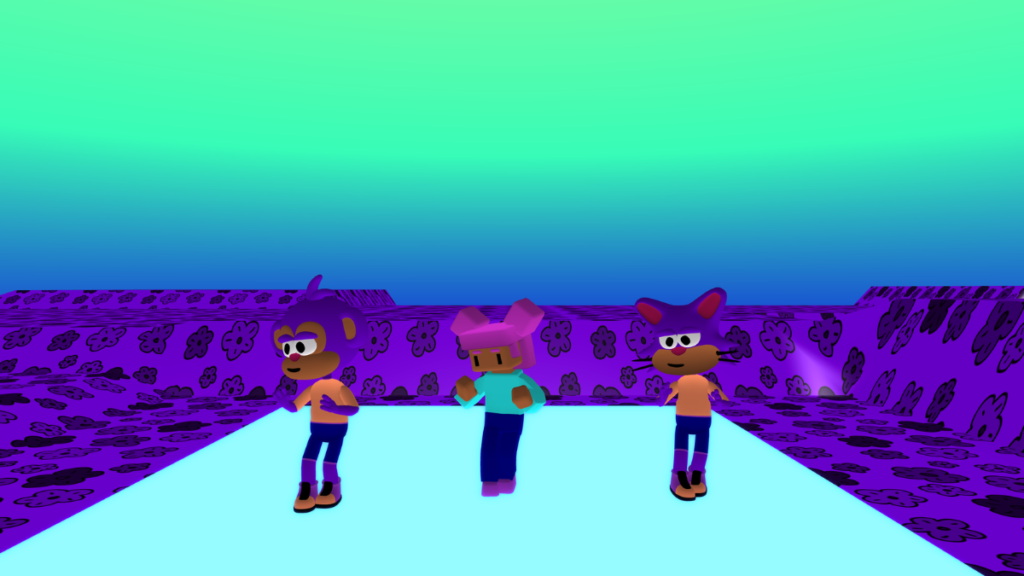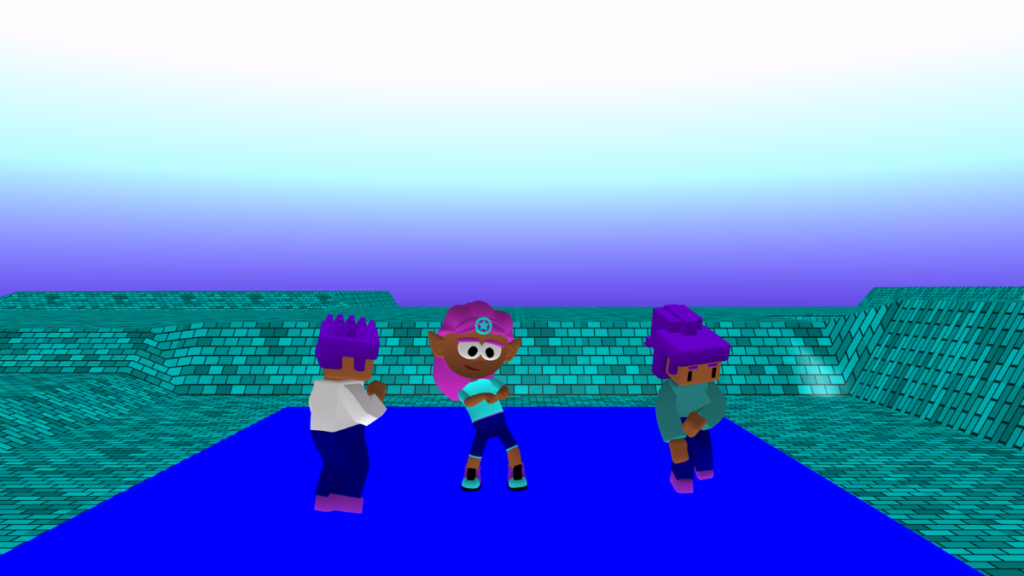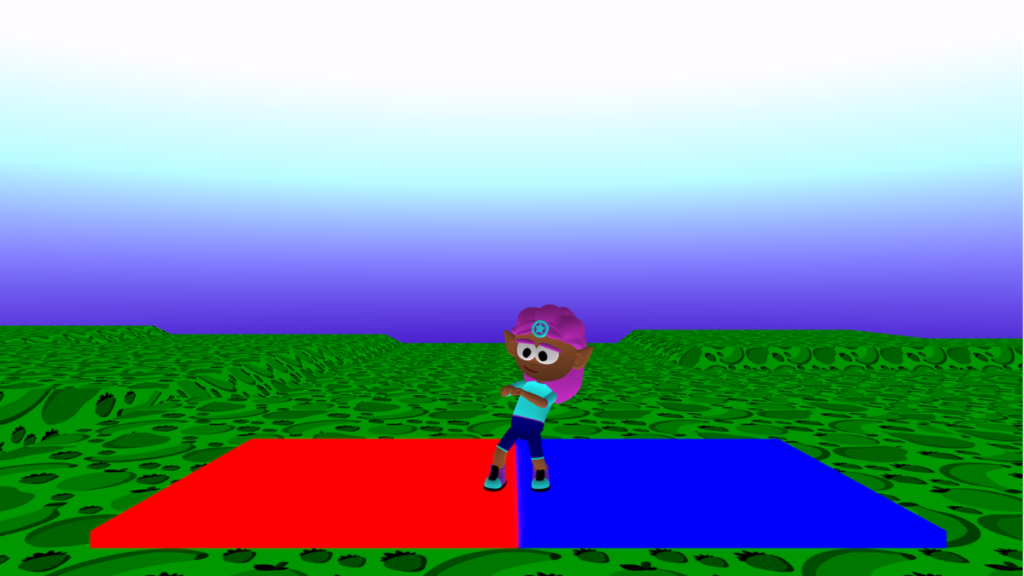

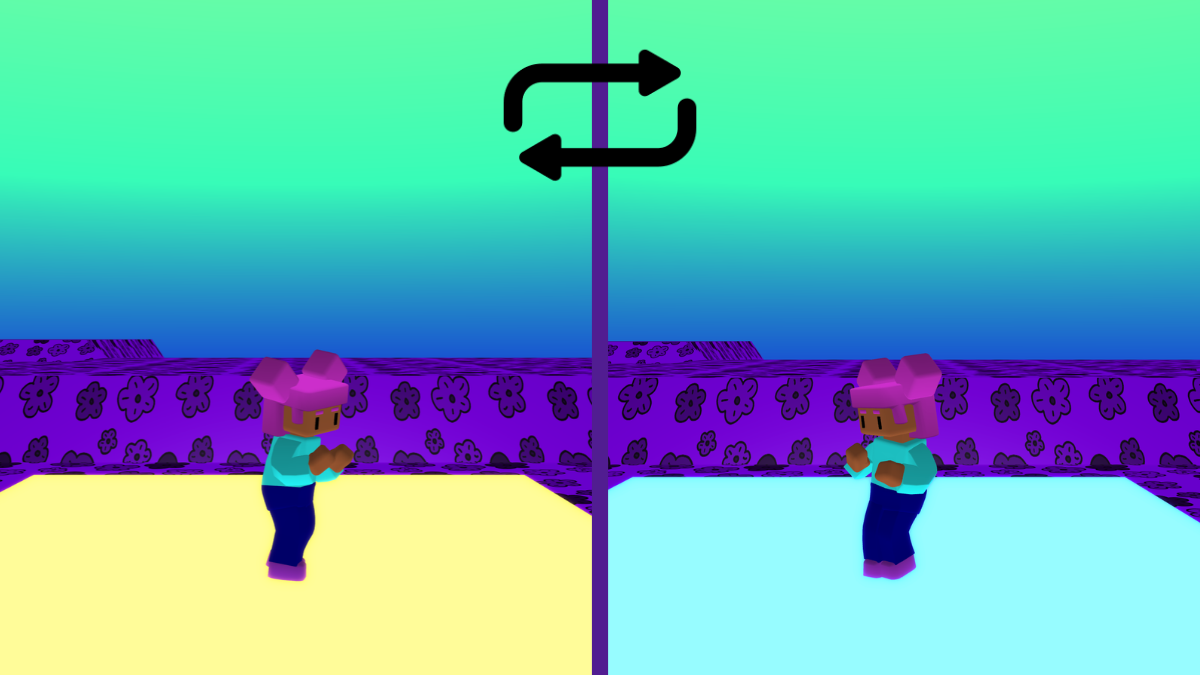
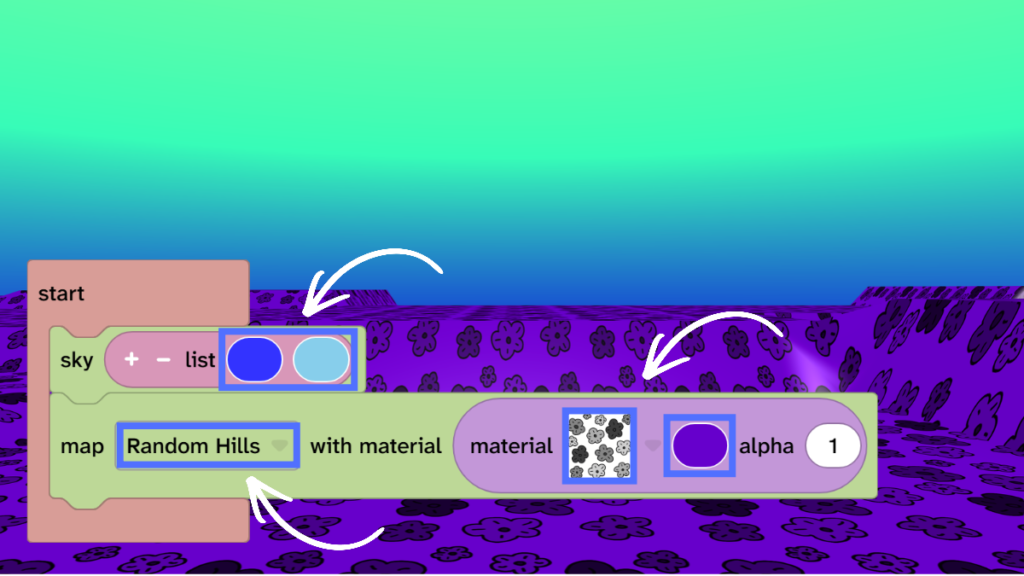
Personalise your world
- Choose sky colours.
- Choose your map.
- Choose a map material.
- Choose a map colour.
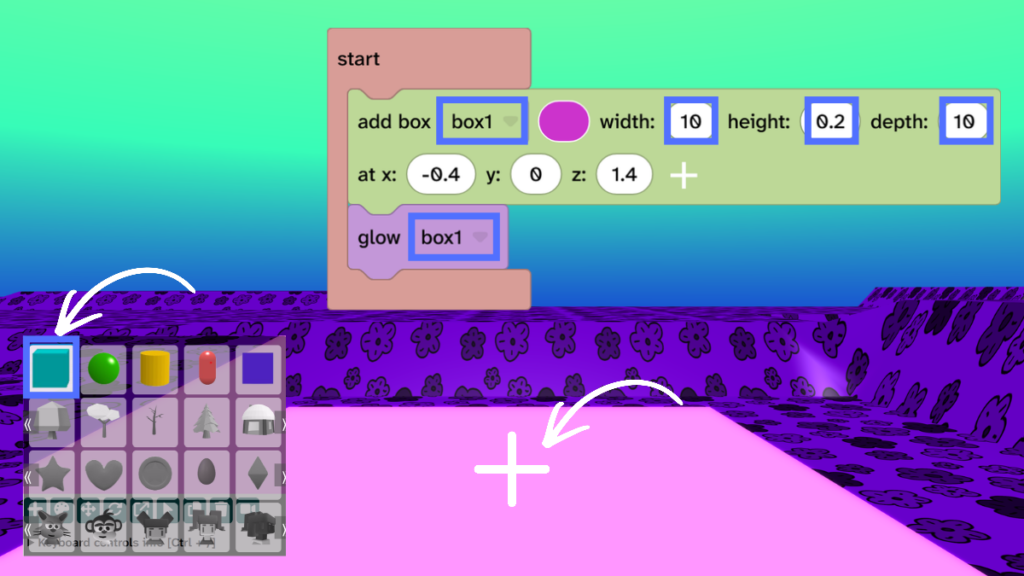
Add the dance floor
- Use the + sign under the canvas to add a box to the centre of the world.
- Change width to 10.
- Change height to 0.2.
- Change depth to 10.
- From Materials, drag the ‘glow’ block under the ‘add box’ block.
- Press Play ▶️ to test. Your box floor will glow.
- Debug: Did you press play? Check that the box and the glow block use the same name.
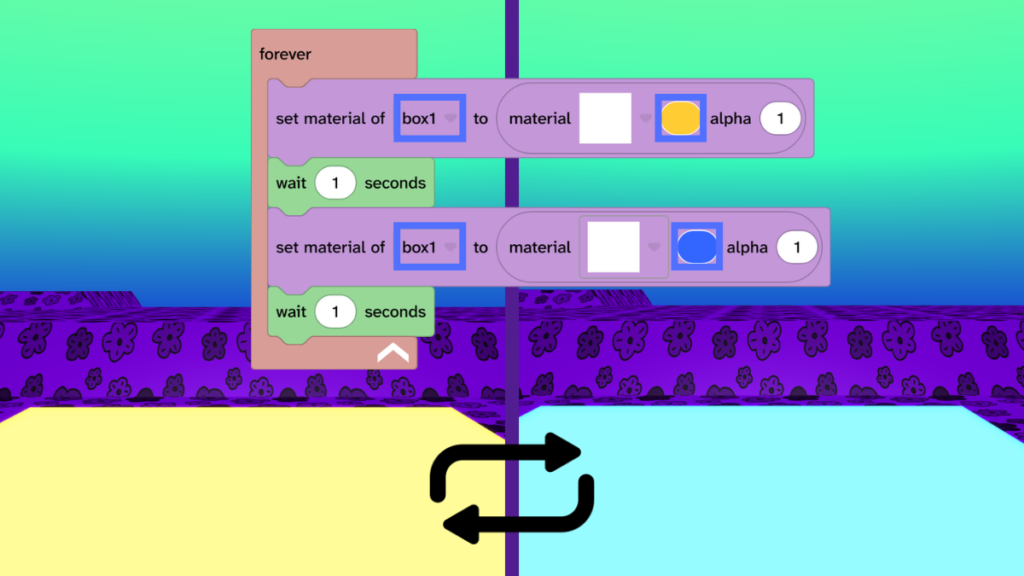
Make the dance floor change colour
- From Events, drag the forever block to the code area.
- From Materials, drag the ‘set material’ block into the ‘forever’ block.
- From Control, drag the ‘wait 1 seconds’ block under the ‘set material’ block.
- Duplicate the ‘set material’ block and the ‘wait 1 seconds’ block by selecting it and pressing D on your keyboard or you can tap and hold to use the menu.
- Choose colours for your disco floor.
- Press Play ▶️ to test. Your disco dance floor will change colours every second.
- Debug: Did you press play? Check that the box and the ‘set material’ block use the same name. Check that you chose different colours. Try different colour combinations as some work better than others.
Add a dancing character
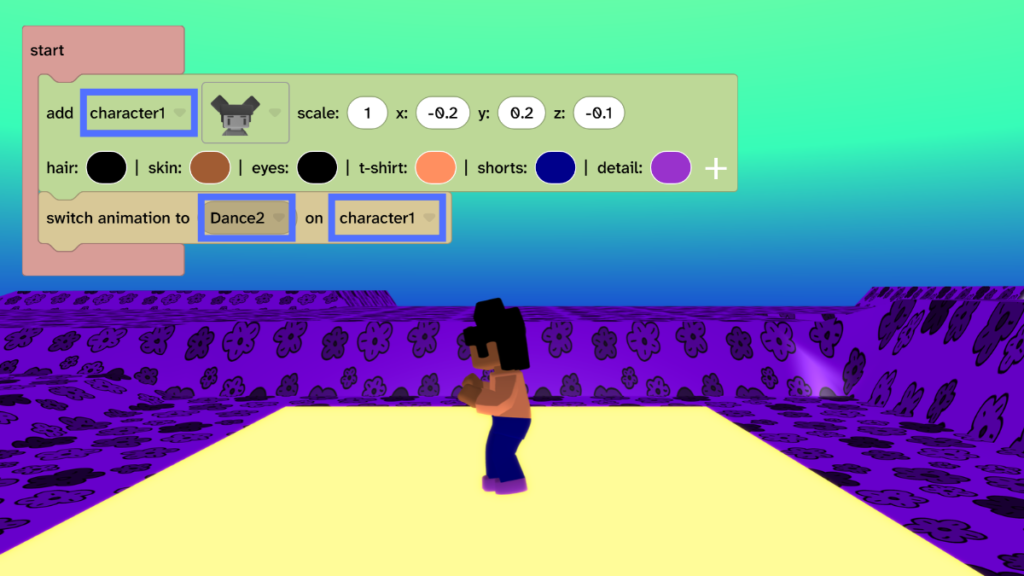
- Use the + sign under the canvas to add a character to your dance floor.
- From Animate, drag the ‘switch animation’ block under the ‘add character’ block.
- Change the animation to one of the dances.
- Press Play ▶️ to test. Your character will dance.
- Debug: Did you press play? Check that the ‘add character’ block and the ‘switch animation’ block use the same name.
Take it further
- Add more characters dancing.
- Make the floor smaller and add another floor with different colours.
- Add the ‘switch animation’ block inside the forever loop to changes dances when the material changes.
Idea gallery