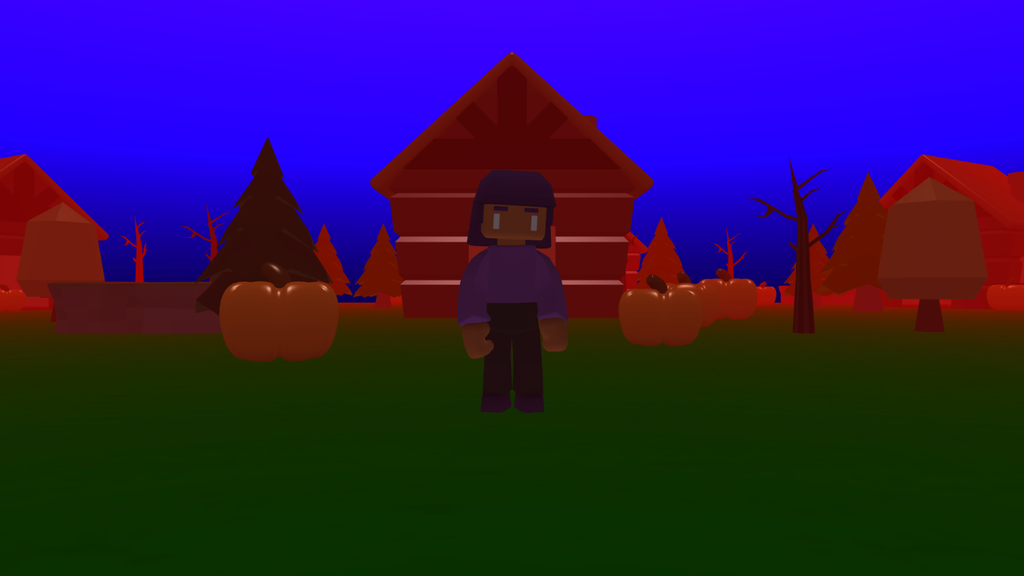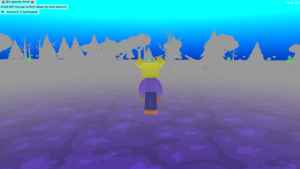

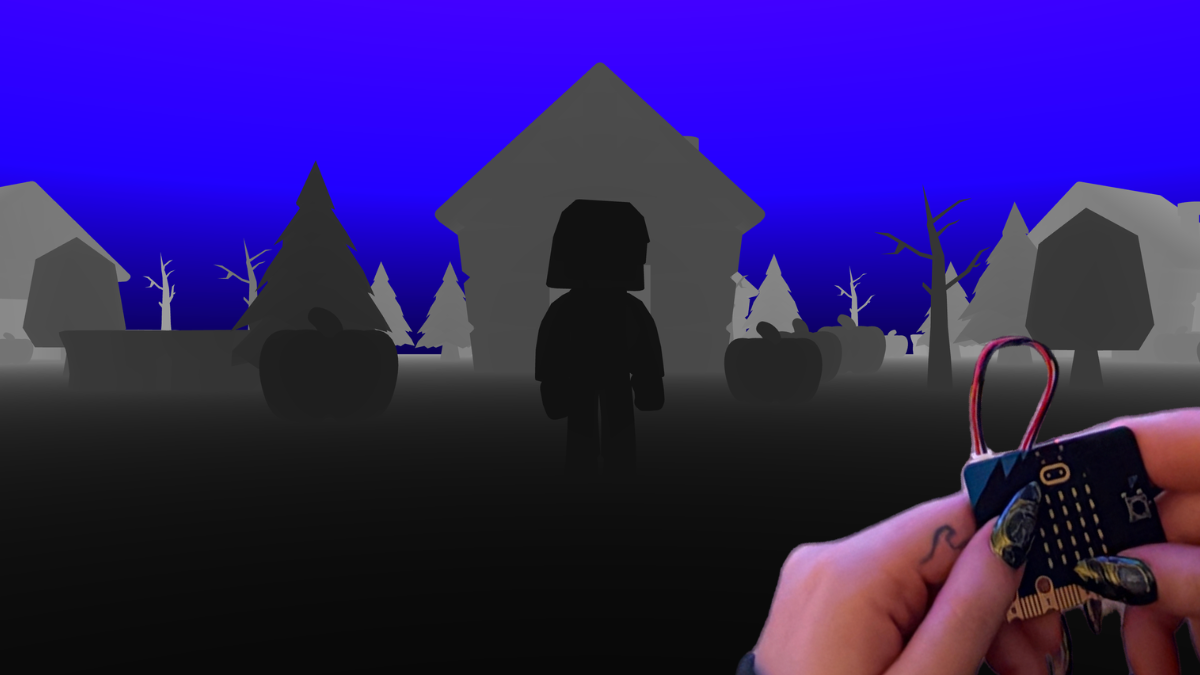
Explore the 3D world
- Look around: Hold the left mouse button and drag, or tap and drag, to turn.
- Move your player: W = forward, S = backward. Touchscreen: use the arrow buttons. Your player moves in the direction you are looking.
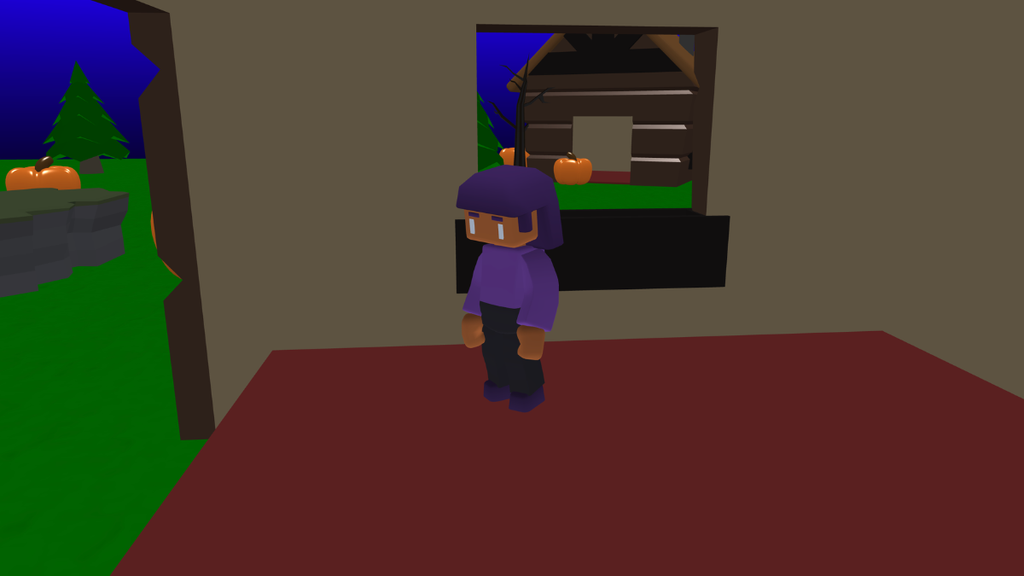
Connect your microbit
- Open this link https://flockxr.com/makecode-file
- Click Edit then Download.
- Close the makecode editor.
- Pair your micro:bit using bluetooth as per the bluetooth device settings on your computer.
- Tip: If you have Bluetooth problems, try getting your device to forget about the micro:bit and try again.
Create a light variable
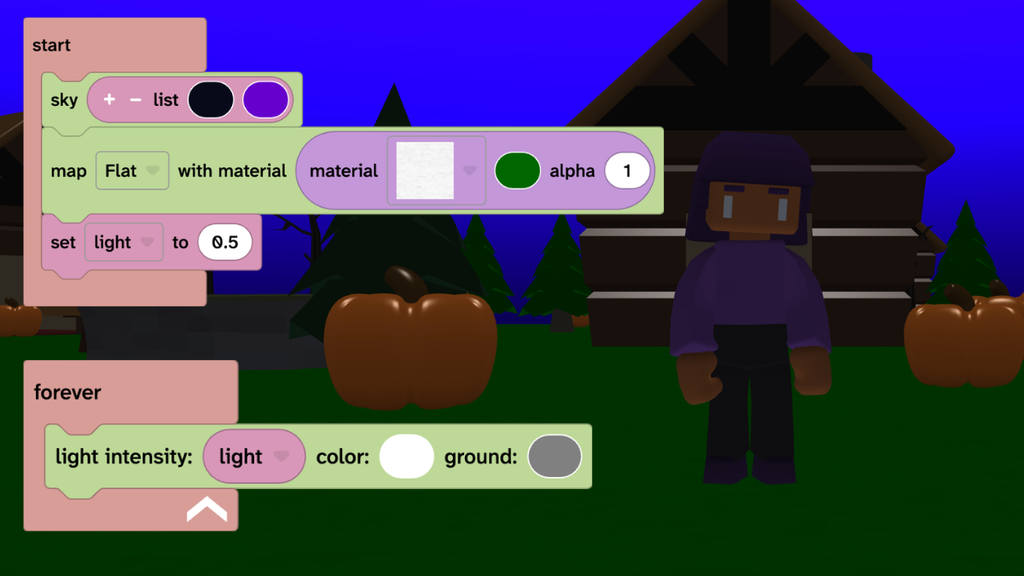
- From Data, choose Variables then add a ‘set to number’ block in a start block.
- Click the dropdown and scroll to the top then choose ‘New variable…’ and type ‘light’.
- Type the value ‘0.5’
- From Events, add a ‘forever’ block.
- From Scene, choose Effects then add a ‘light intensity’ block inside your forever block.
- From Data, choose Variables then add a ‘light’ block in the light intensity block.
Make it darker
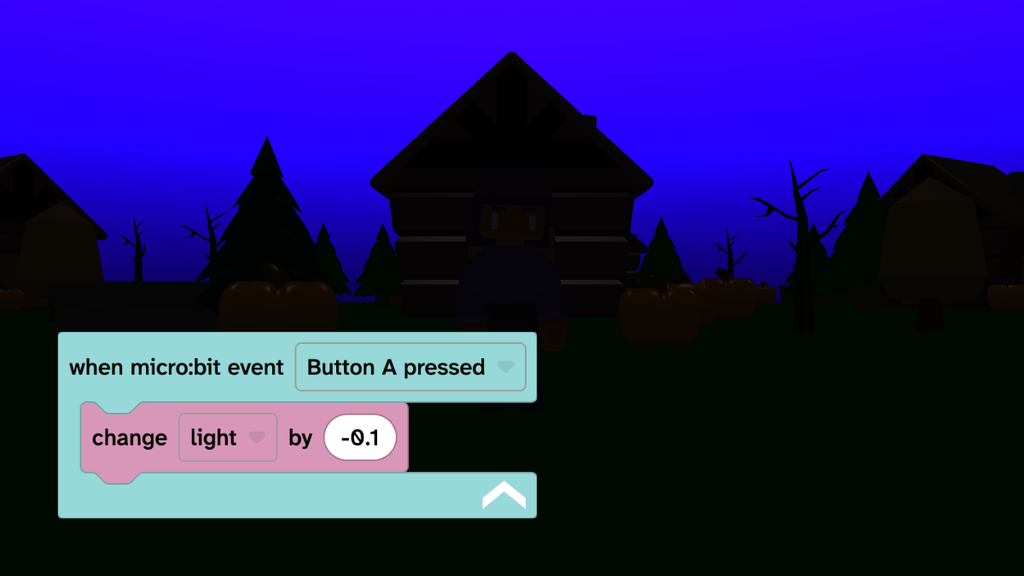
- From Sensing add a ‘when micro:bit event’ block.
- Change the event to ‘Button A pressed’.
- From Data, choose Variables then add a ‘change’ block inside the micro:bit block.
- Change the value to ‘-0.1’.
- Play your project and press button A to test.
Make it lighter
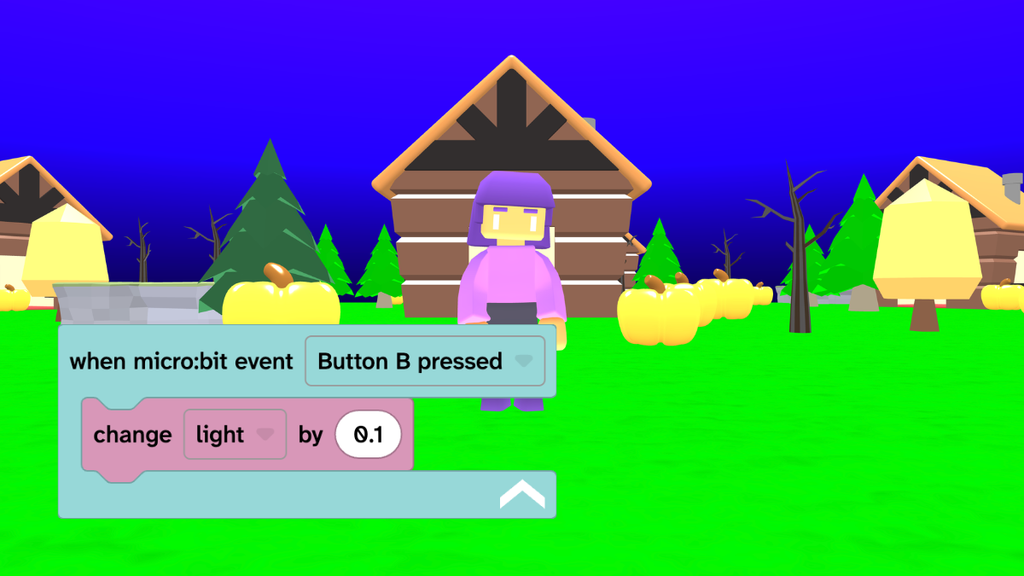
- Right-click or tap and hold on the micro:bit block then choose ‘Duplicate’.
- Change the new micro:bit block to ‘Button B pressed’.
- Change the value to ‘0.1’.
- Play your project and press button B to test.
Add fog
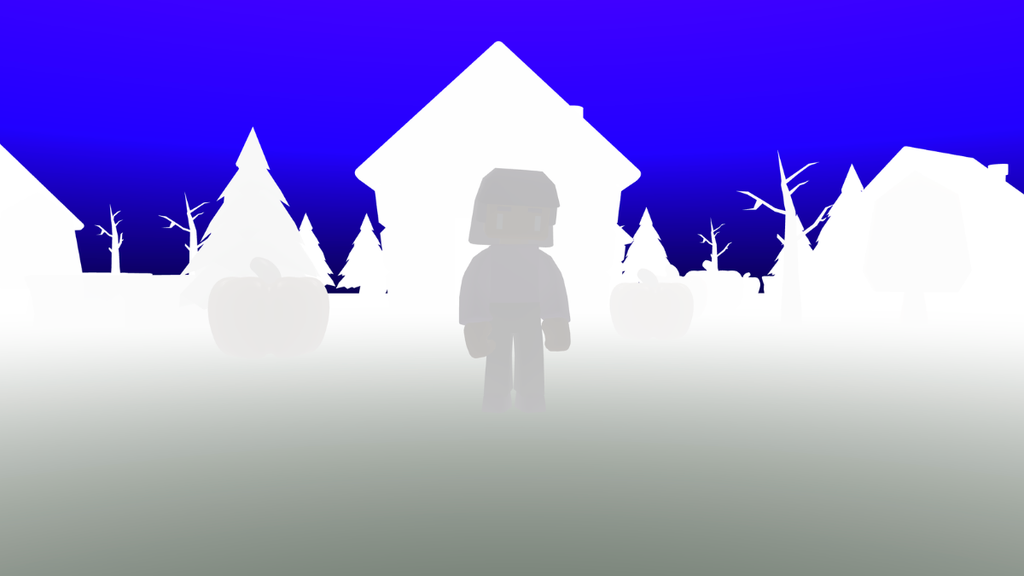
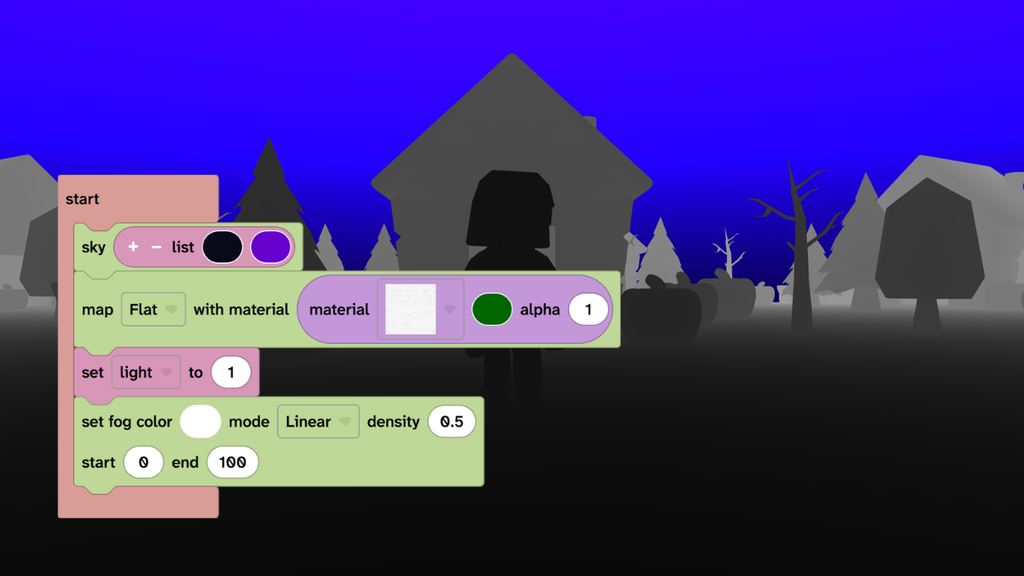
- From Scene, choose Effects then add the ‘set fog color’ block under the ‘set light’ block.
- Change the density to ‘0.5’ and the start to ‘0’.
- Press play to test and use the micro:bit to change the light.
Take it further
- Change the fog settings to create different effects.
- Forever set the fog mode to ‘EXP’ and the density to your ‘light’ variable so that the micro:bit controls the fog.
- Set the light intensity to ‘0’ when Button A & Button B are pressed together.
Idea gallery