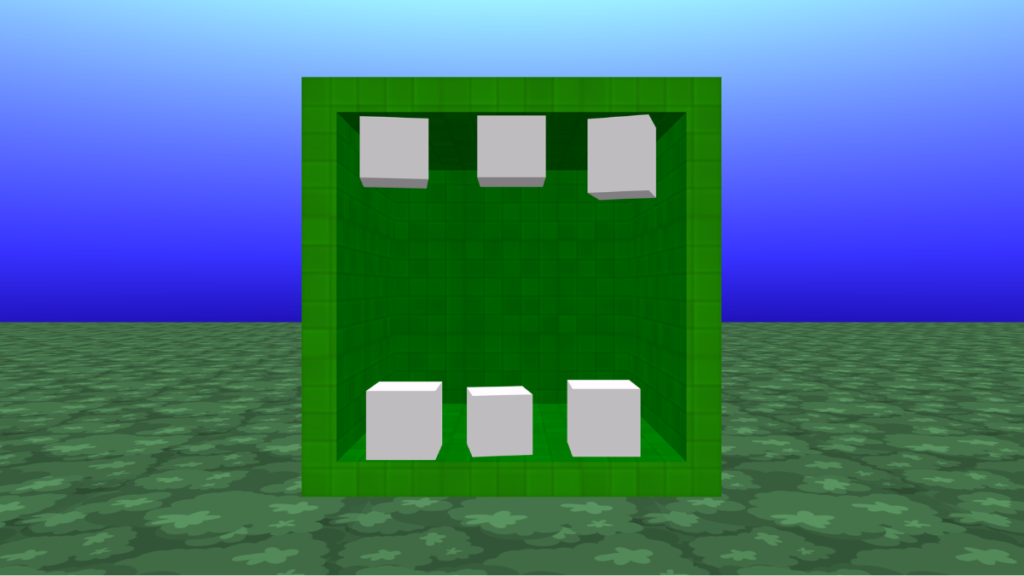

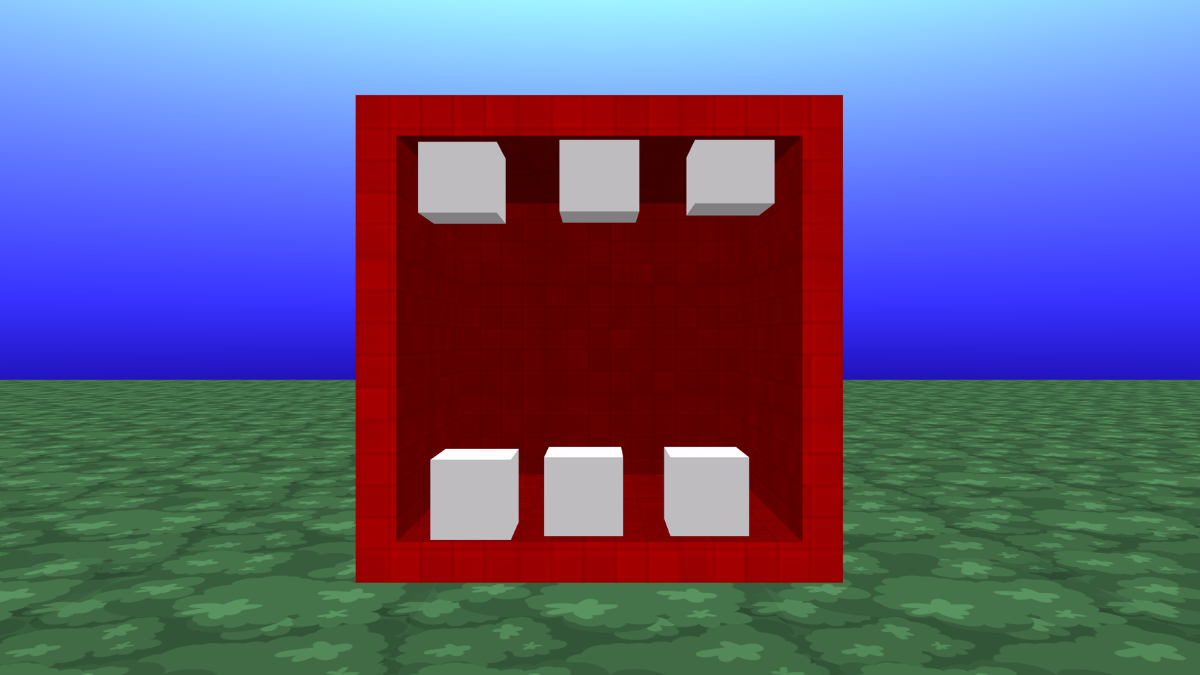
Add a box
- From Events, add a ‘start’ block to the code area.
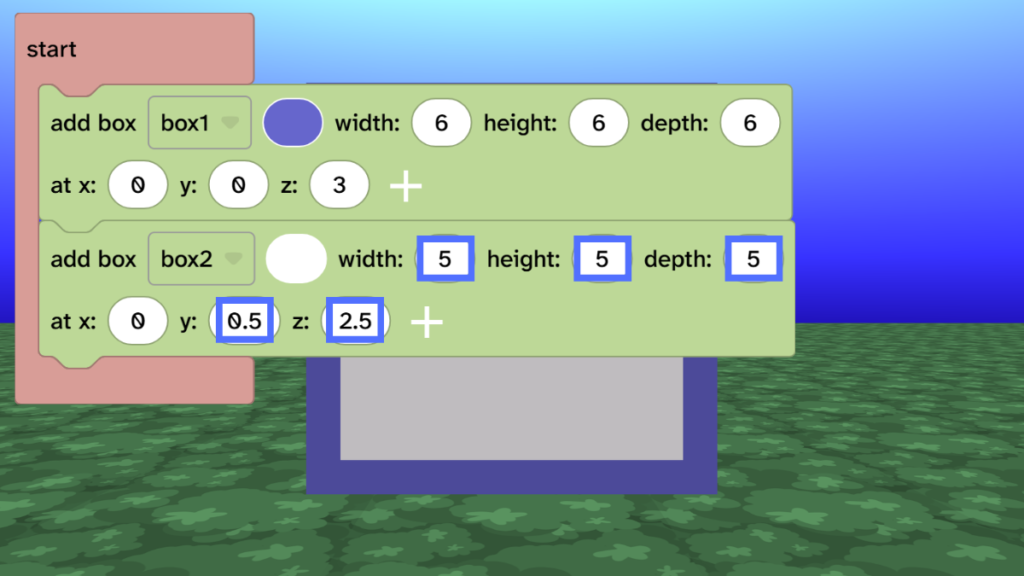
- From Scene, choose Objects and add an ‘add box’ block inside the start.
- Set the Width, Height and Depth of the box to 6.
- Change the Z value to 3 to move the box into the distance a little.

Add a second box
- Duplicate the box block (select the block and press D or use the menu and choose duplicate).
- Change the colour of the block so that you can see the changes.
- Change the Width, Height and Depth of the new box to 5.
- Change the z value to 2.5 and the y value to 0.5.
- You should see the new box inside the old box.
Subtract the box to make the mouth cave
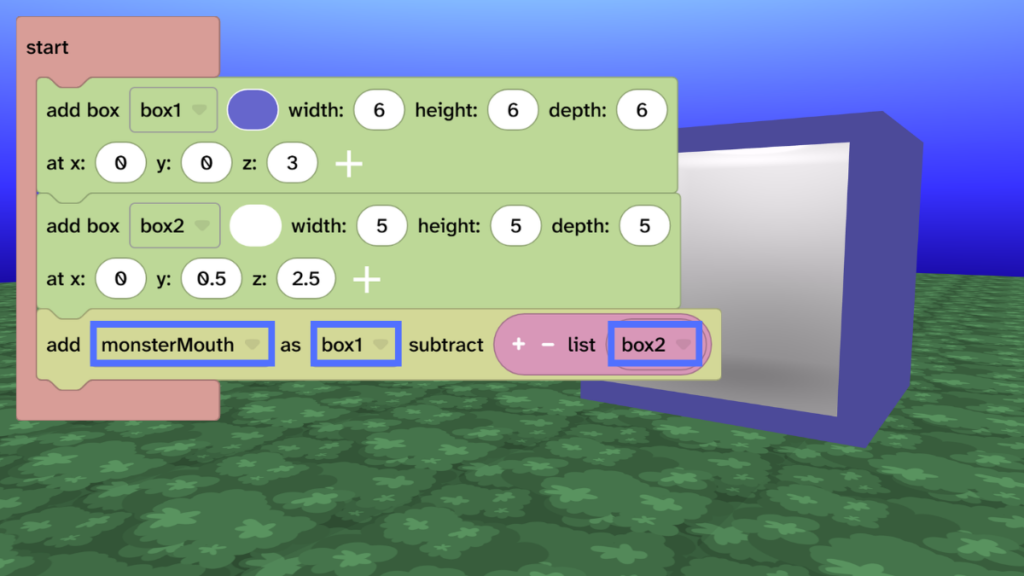
- From Transform, choose Combine and drag the ‘add as subtract’ block under the ‘add box2’ block.
- Click the ‘subtracted1’ dropdown and choose ‘New variable’. Name it monsterMouth.
- Change ‘object’ to ‘box1’.
- Change the ‘i’ next to list to ‘box2’.
- Press Play ▶️ to test. Your box should become hollow.
- Debug: Check that you have pressed play. Check that you have used the correct variable names in the subtract block. The first name is the new name that you created, the second name is the larger box and the third name is the smaller box.
Add materials for your mouth
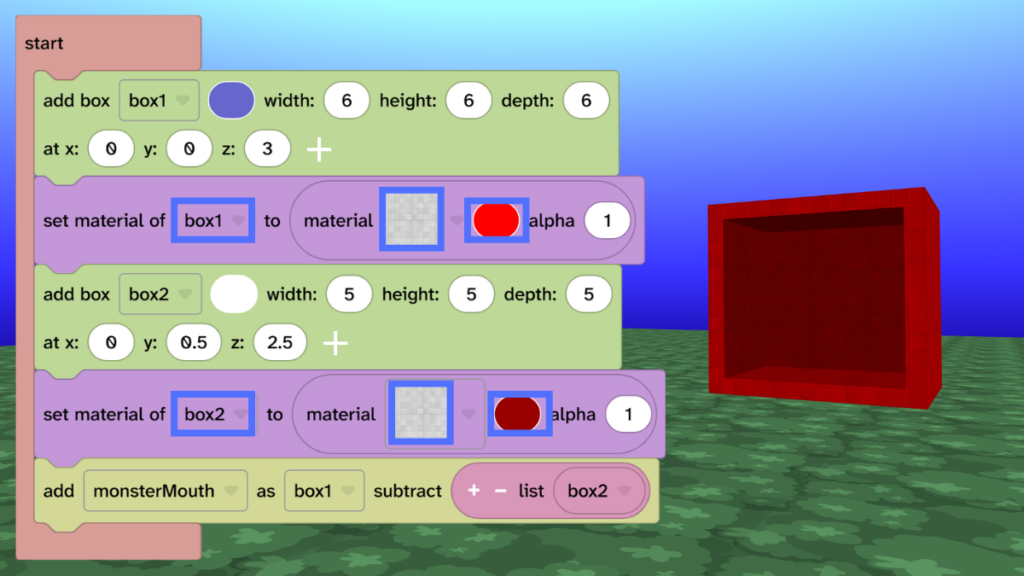
- From Materials, drag the ‘set material of’ block under the first ‘add box’ block.
- Check name next to ‘set material of’ and make sure it is ‘box1’.
- Choose a material. The example uses the square stones.
- Choose a colour. The example uses a light red.
- Repeat for ‘box2’ using a darker red for the inside of the mouth.
- Press Play ▶️ to test. Materials should be on the outside and inside of the mouth.
- Debug: Check that you have pressed play. Check that you have used the correct variable names on your material blocks.
Add a tooth
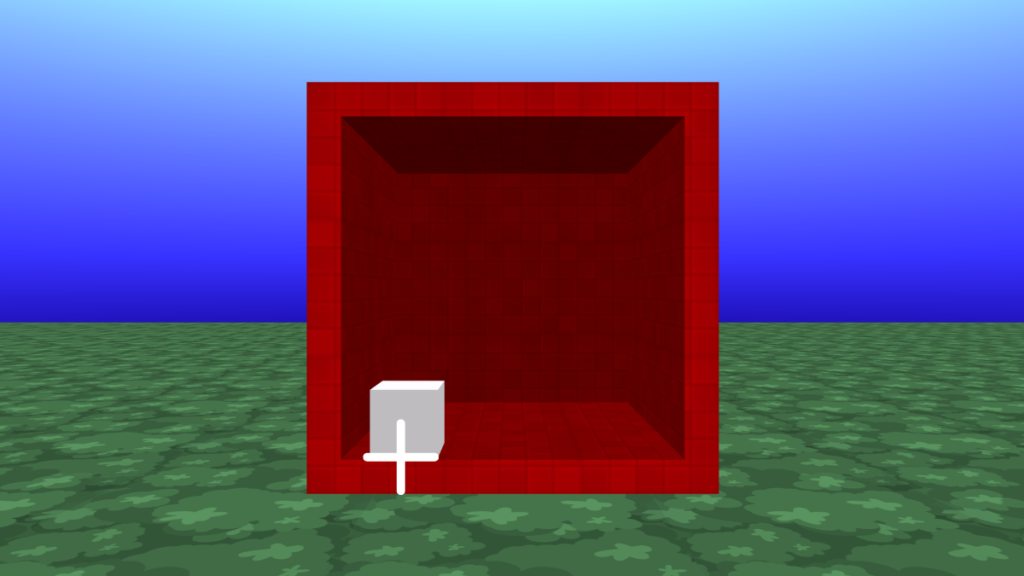
- Click the + sign under the canvas and choose the box from the top row.
- Click in the bottom left corner of the mouth to place the tooth.
- Change the colour of the tooth. This example uses white.
- If it isn’t in the right place then use the position gizmo to move it.
Add more teeth
- Click the ‘select’ icon under the canvas and click the tooth on the canvas to select it.
- Click the ‘duplicate’ icon under the canvas.
- Click on the canvas to add five more boxes of the same colour.
- Use the position gizmo to move each tooth into place.

Take it further
- Rotate and scale the teeth to make them more crooked.
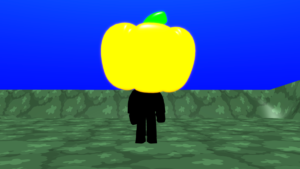
- Add eyes to the top using spheres and materials. You could add 1, 2, or 3 to create different effects.
- Add arms using boxes on each side of the mouth.
Idea gallery