
Personalise your world
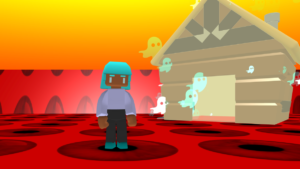
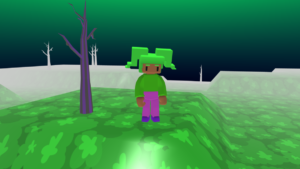
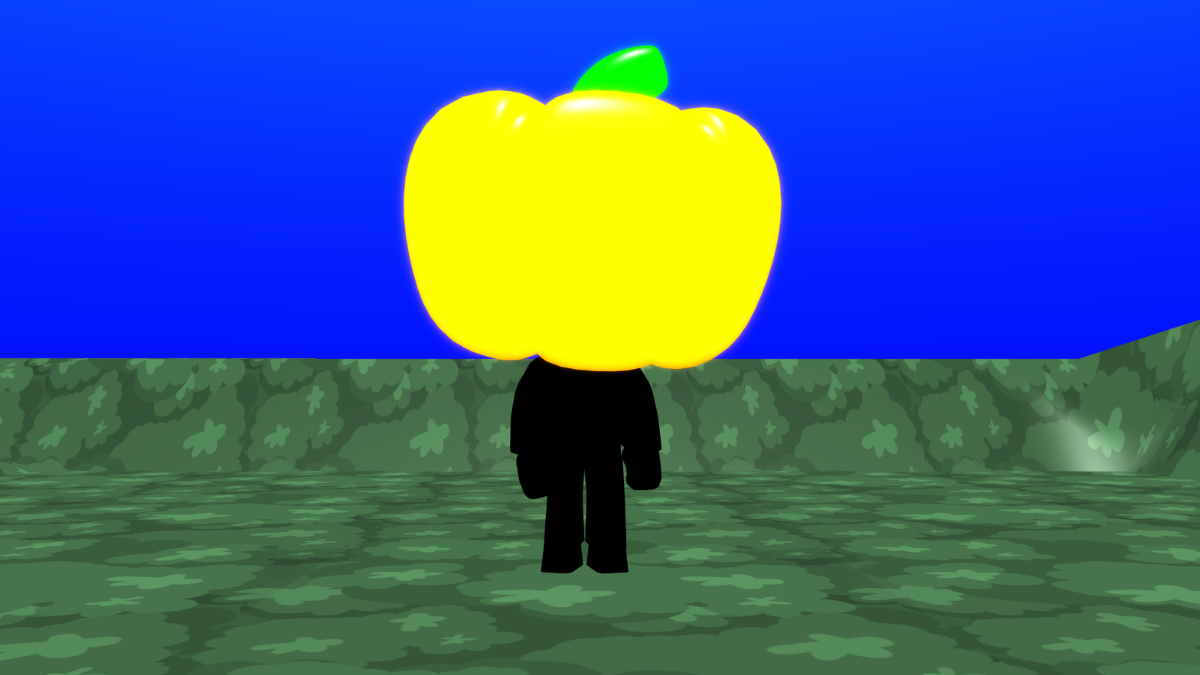
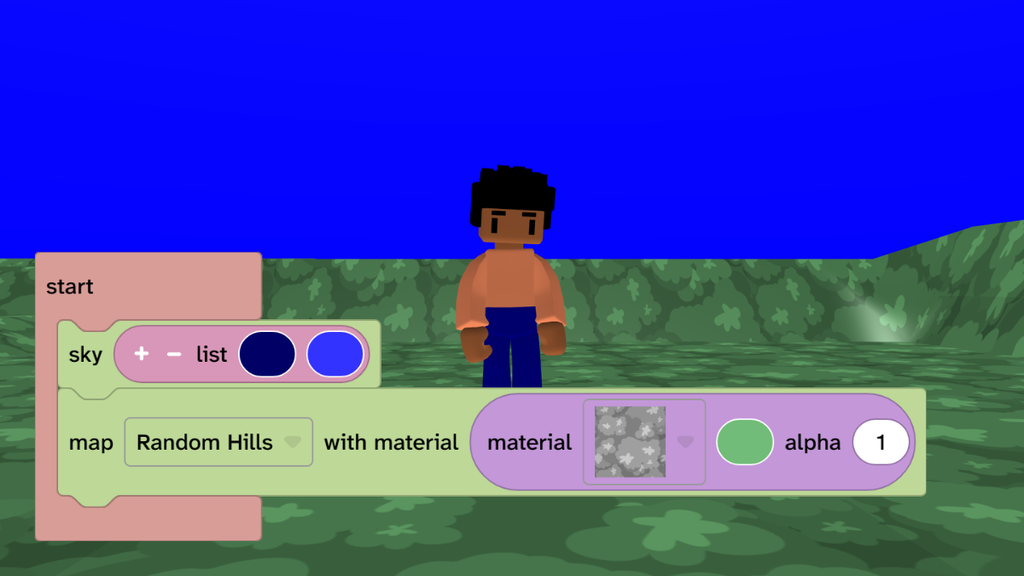
- Change your sky and map to create a Halloween feel for your world. Choose your own style.
- Look around: Hold the left mouse button and drag, or tap and drag, to turn.
- Move your player: W = forward, S = backward. Touchscreen: use the arrow buttons. Your player moves in the direction you are looking.
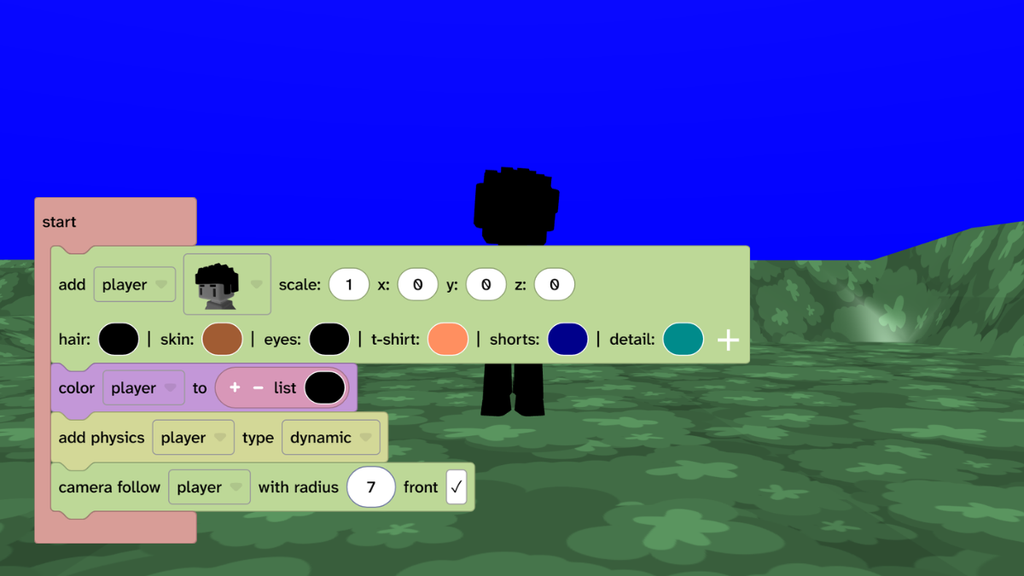
Choose a character colour
- From Materials, add the ‘color’ block under the ‘add player’ block.
- Make sure the dropdown says ‘player’.
- Choose a colour. This example uses black.
- Press play to test.
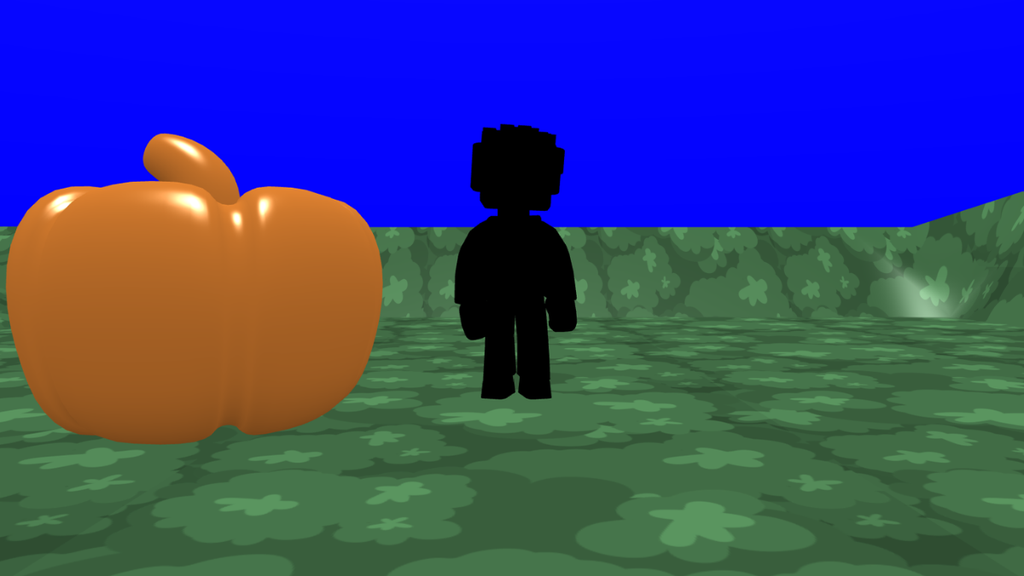
Add the pumpkin
- Click the + sign under the canvas.
- Find the pumpkin in the third row down.
- Click on the canvas next to the player to place the pumpkin.
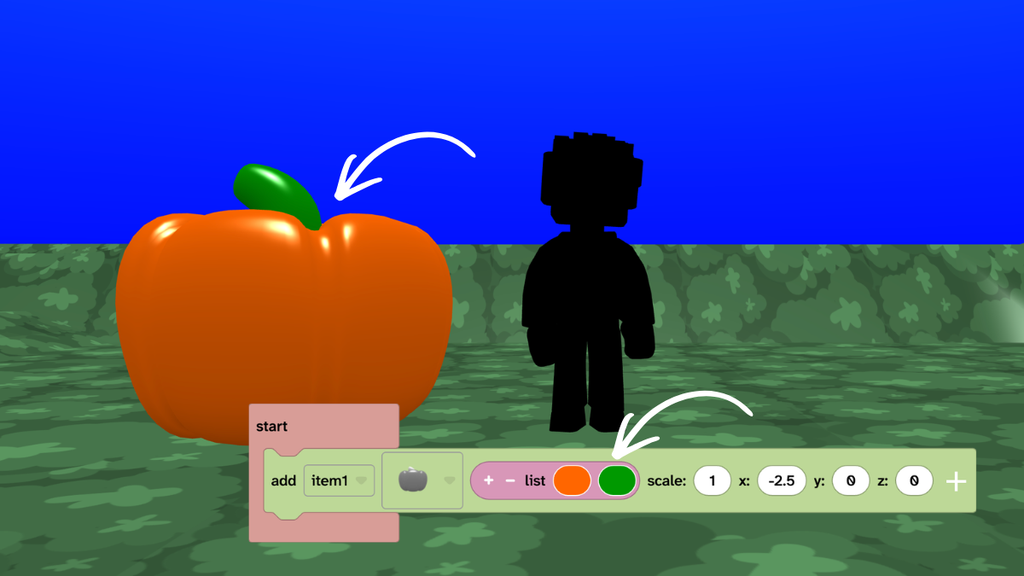
Choose colours for your pumpkin
- From Materials, add the list of colours block on top of your pumpkin colour.
- Choose two colours. This example uses Orange and Green.
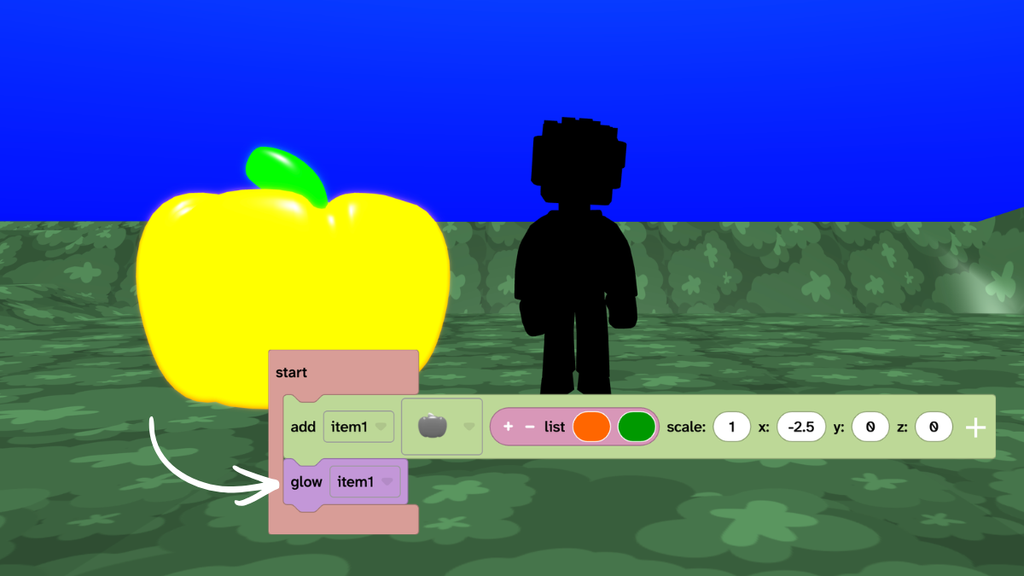
Glow the pumpkin
- From Materials, choose the ‘glow’ block and add it under your pumpkin block.
- Press play to test.
Attach pumpkin to players’ head
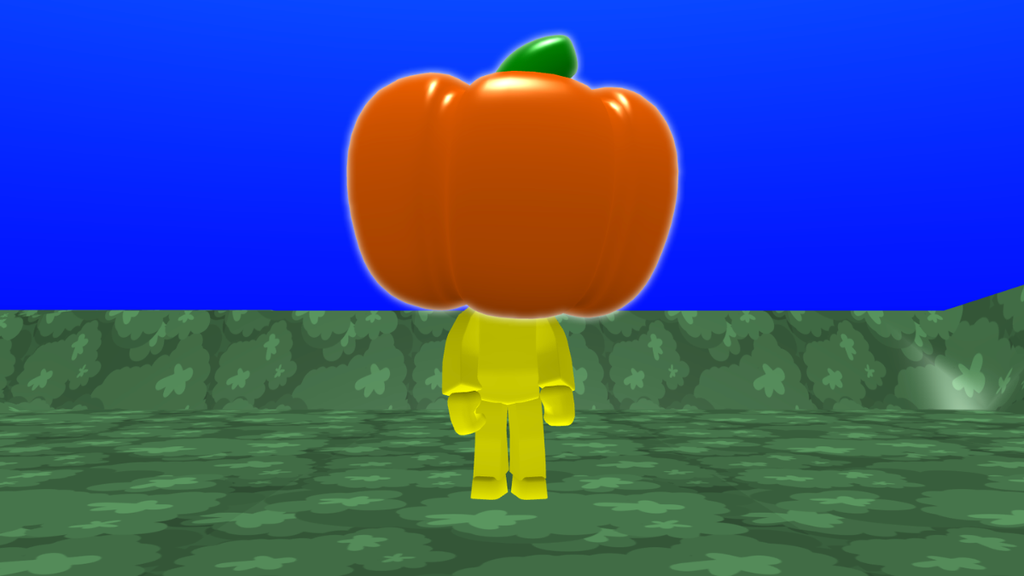
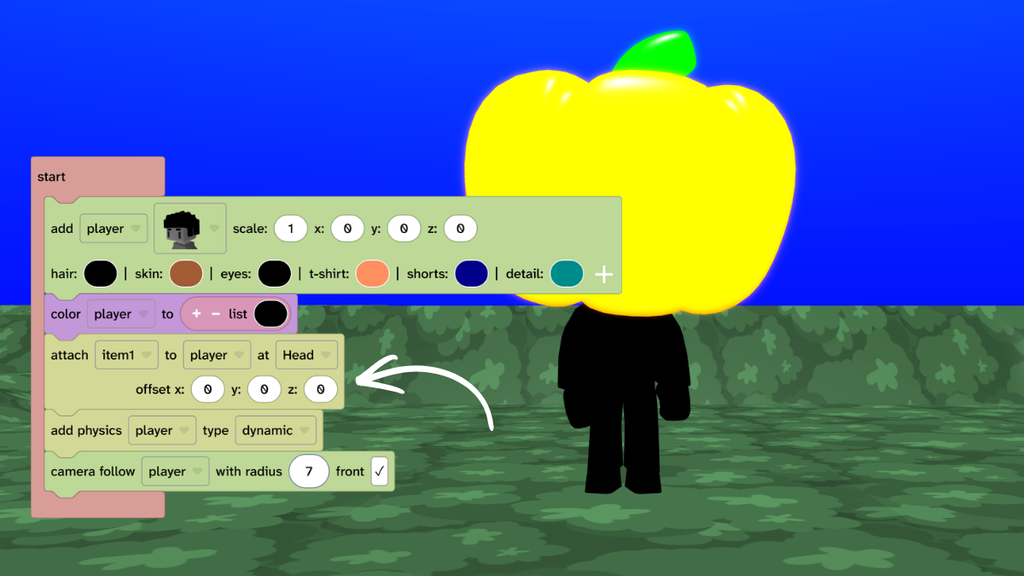
- From Transform, choose Connect, then add the ‘attach object’ block under the ‘color player’ block.
- Change ‘object’ to ‘item1’ (or the name of your pumpkin).
- Change ‘target’ to ‘player’.
- Change ‘Left Hand’ to ‘Head’.
- Press play to test.
Take it further
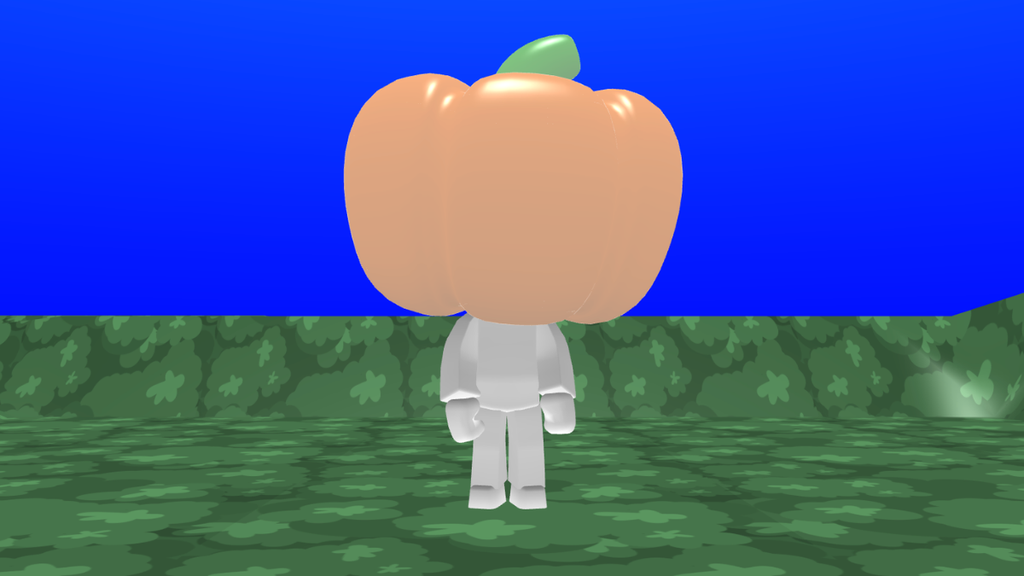
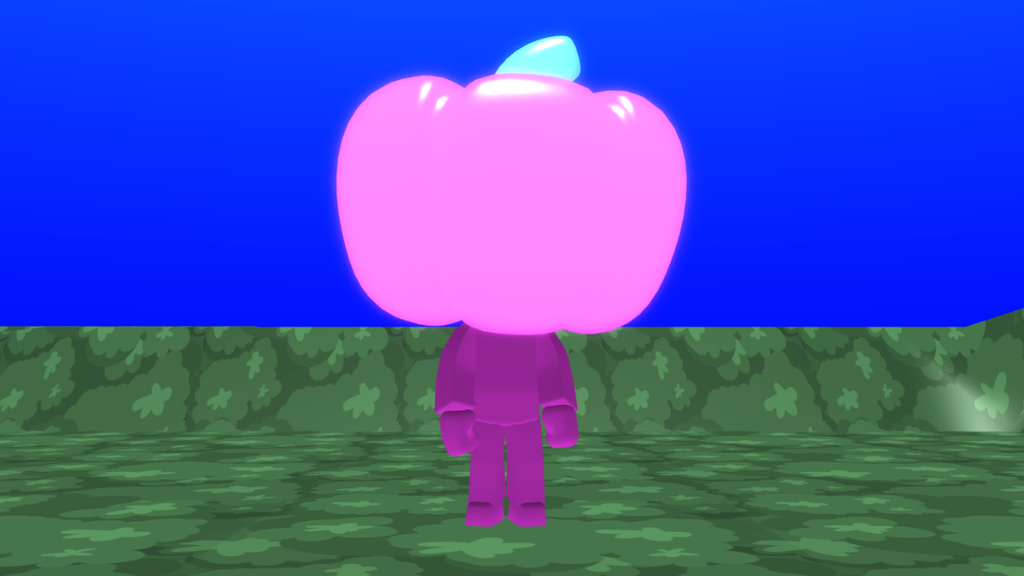
- Try ‘tint’ or ‘highlight’ material effects instead of ‘glow’
- Try different colour options for your character and pumpkin
- Change the speed of your character by changing the values in ‘move player forward’
Idea gallery