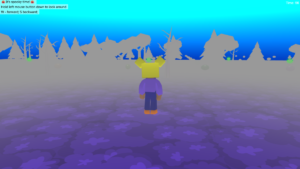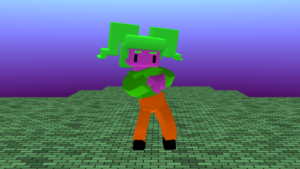

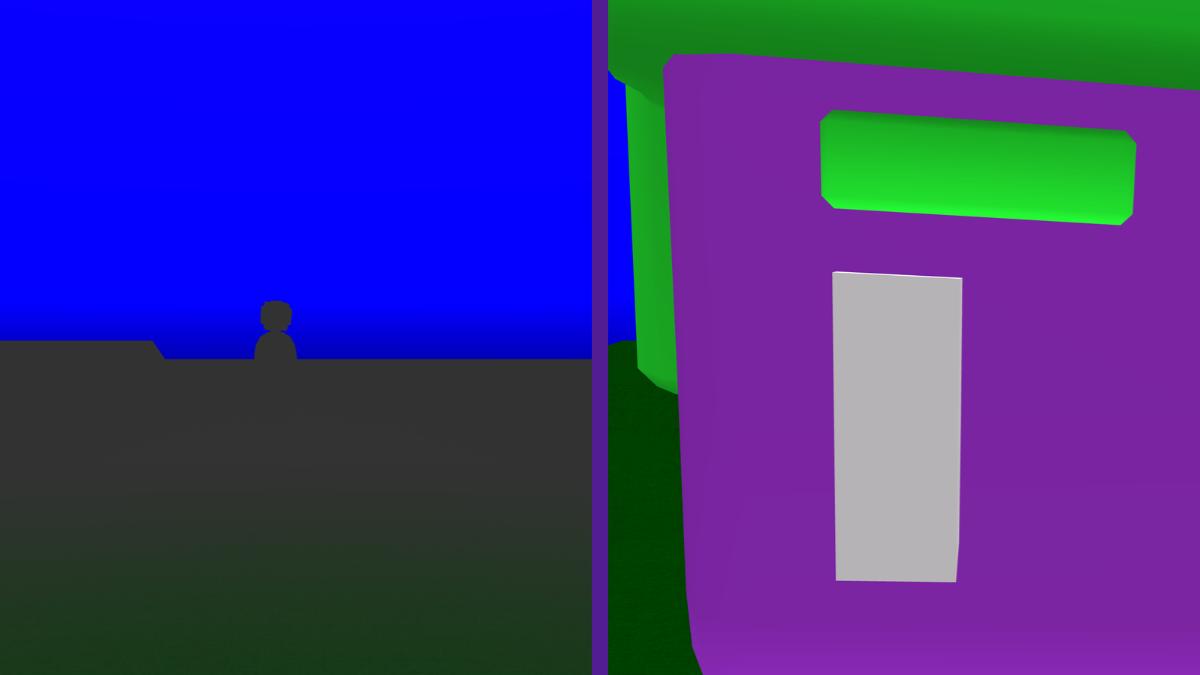
Glide the character to the screen
- From Animate drag the ‘glide object to x, y, z’ block under the ‘switch animation’ block.
- On the glide block, change y to -1
- Change z to -8
- Change in seconds to 0.2
- Press Play ▶️ to test. Your character should quickly move towards the screen.
- Debug: Did you press play? Make sure that you have changed the y and z values on the glide block and not the character block. Make sure the glide block says ‘character1’.

Add a random delay
- From Control, drag the ‘wait 1 seconds’ block before the ‘glide’ block.
- From Math, drag the ‘random integer from 1 to 100’ block on top of the 1 second value on the ‘wait’ block.
- Change 100 to 10 or it will take too long for you to jump!
- Press Play ▶️ to test. Your character should wait for a random time between 1 and 10 seconds then run to the front.
- Debug: Did you press play? Make sure the ‘wait’ block is before the ‘glide’ block. Make sure that the ‘random integer’ block is set to from 1 to 10.

Add a spooky sound
- From Sound, drag the ‘play sound’ block above the ‘glide’ block.
- Change ‘High Down’ to ‘Footstep’
- Press Play ▶️ to test. You should hear a footstep sound when your character moves forwards.
- Debug: Did you press play? Make sure the ‘play sound’ block is before the glide block.

Experiment with spookiness
- On the ‘play sound’ block, try different speeds. You could try 0.5, 2 or 3.
- Try different random integer values. Perhaps 1 to 20 is more spooky? Be careful not to make it too slow or it will get boring.
- Try making your character move even closer. y is up and down and z is in and out. y -0.8 and z -8.5 are good ones to try.

Add spooky fog
- From Scene, choose Effects and drag the ‘set fog’ block above the sky block.
- Choose a dark colour for your fog.
- Change ‘Linear’ to ‘Exp2’.
- Press Play ▶️ to test. You should see a lot of fog!
- Debug: Did you press play? Try different colours if the effect isn’t quite right.

Take it further
- Change the character and choose different colours.
- Add scenery to your spooky world.
- Keep experimenting with values to make it as spooky as you can!
Idea gallery